Many entrepreneurs think, "To manage a customer database, you need a CRM. But CRMs are expensive, complicated, and require setup." But what if I told you: you already have your first CRM? It's free, familiar to everyone, and it's stored in your Google account. It's Google Sheets.
With FormDesigner, you can transform a standard website form into an automated lead capture system that instantly adds every client to your spreadsheet—without a single line of code, an IT specialist, or a monthly subscription.
This article provides step-by-step instructions on how to create a working, self-growing customer database in 20 minutes.
Why Google Sheets is a great replacement for an expensive CRM (at launch)
Yes, Kommo, Bitrix24 and HubSpot are powerful. But they're overkill for beginners. Google Sheets, on the other hand, is ideal:
- ✅ Free – even for a team of 10 people.
- ✅ Universal - easily add columns "Source", "Status", "Manager's comment".
- ✅ Real-time access – the entire team can see new requests.
- ✅ Reliable – data is stored in the cloud, and version history is saved automatically.
This isn't a "cheat." It's a flexible, scalable solution for those who want to get started—and not waste their budget.
How the link works: from a form to a table row
Everything happens automatically:
- A visitor fills out a form on your website—whether it's a simple application, a quiz like "Which plan is right for you?", or an online repair cost calculator .
- Data is sent via FormDesigner .
- FormDesigner instantly adds a new row to your Google Sheet .
- You open the table and see a fresh lead with all the details.
No spam emails. No lost applications. Just structured data—ready to use.
Step 1: Create a Google Sheet for Clients
- Go to Google Sheets.
- Click "Blank Table".
- Name the file: for example, “Lead Database - Cleaning 24” .
- In the first row, create column headings:
| Date and time | Name | Telephone | Service | Source | Status |
|---|
💡 Tip : Add a "Comment" column so the manager can write down what they discussed with the client.
Freeze the first row: View → Freeze → 1 row - this way the header will always be visible.
Step 2: Prepare the table for integration
FormDesigner must have access to your table:
- In order for us to be able to get a list of column names, they must be written in the first row of the desired sheet of your table.
- You must be the owner of the Google account.
⚠️ Important : Your data is never shared with third parties . FormDesigner only writes information to the table you specify.
Copy the table URL from the address bar between "/d/" and "/edit": you will need it in the next step:

Step 3: Create a form in FormDesigner
Now let's create a data source - a form that will "feed" your table.
Works well:
- Simple form: "Name + Phone".
- Quiz : "What type of cleaning do you need?" → service selection + contact information.
- Form + calculator : “Calculate the cost of repairs” → total amount + “Submit request” button.
How to create:
- Go to FormDesigner .
- Choose a template or create a form from scratch.
- Add fields: name, phone number, email, service, etc.
- The field names do not necessarily have to match the column headings in the table; you can choose the correspondences that are more convenient for you for integration.
Step 4: Connect Google Sheets to FormDesigner
Now comes the easy part:
- In the form editor, open Integrations tab.
- Select Google Sheets and click the Add button. .
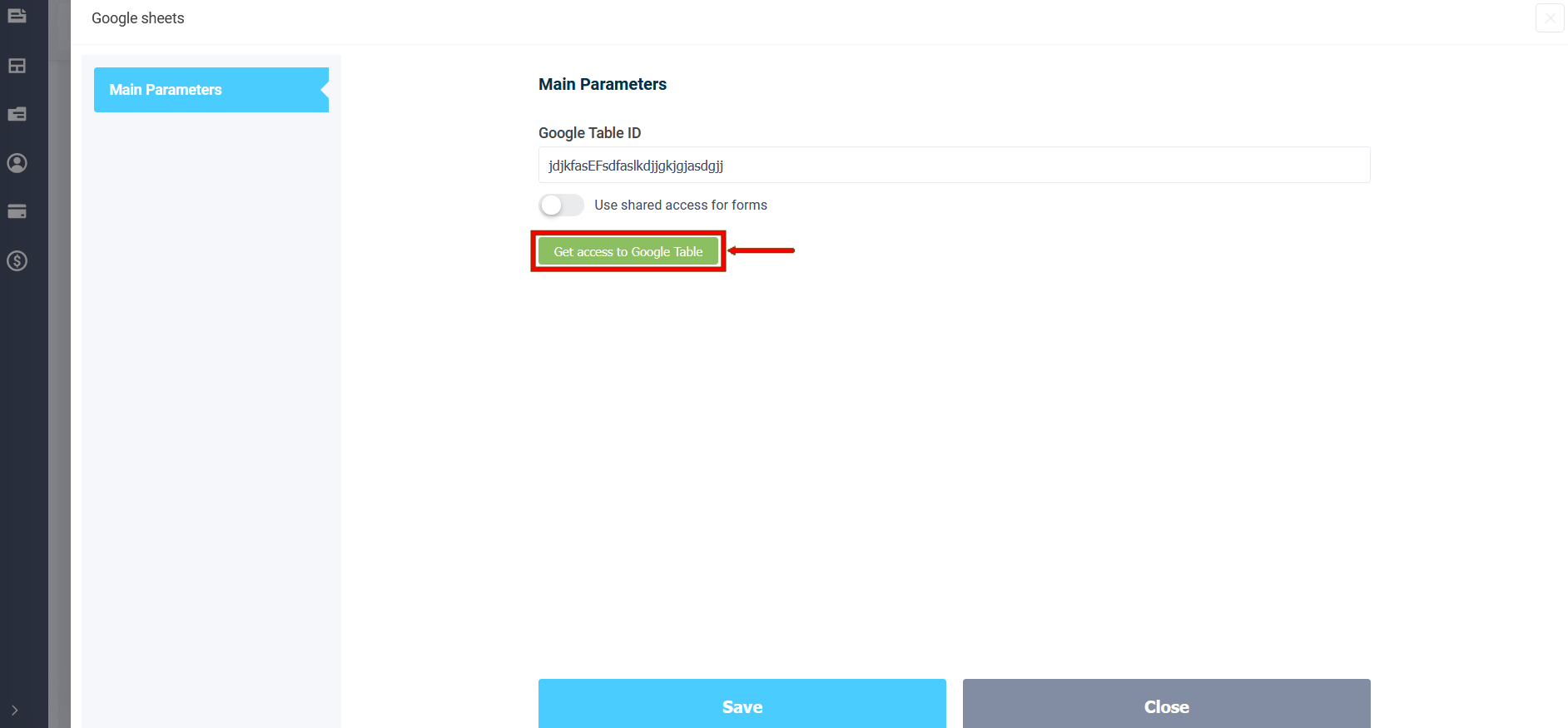
- In the main settings, in the Google Sheet ID field, paste the table ID and click the "Access table" button.
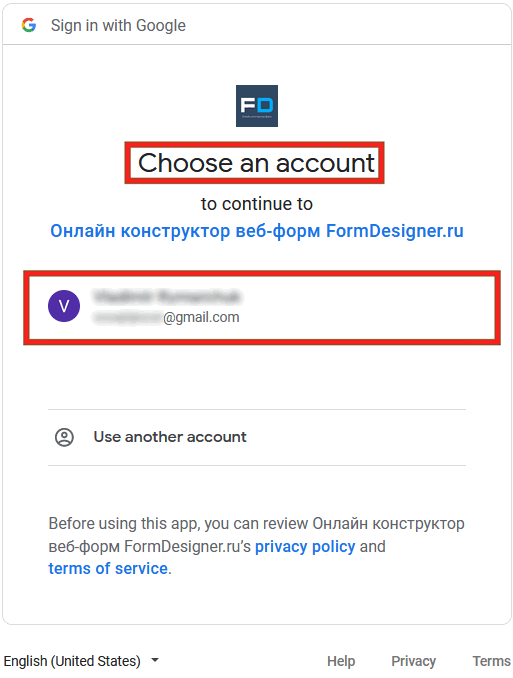
- Log in to your Google account and grant permission to the FormDesigner app:
- Select a sheet (usually "Sheet1").
- Match the form fields with the table columns (Google on the left - form fields on the right).
- Click "Save" → Fill out the form and "Submit a test application" .
If a new row appears in the table, congratulations! Your free CRM is working .
💡 Feature : FormDesigner can automatically insert the submission date and time (and more) , even if they are not in the form - just add the corresponding column to the table and select the system fields in the integration on the right.
What can be done with such a “base” next?
Now your table is a living tool:
- 🔍 Filter by source: find out where your hottest leads are coming from.
- 🎨 Color markers : highlight "In progress" in yellow and "Deal closed" in green.
- 📊 Pivot tables : calculate conversion rates by traffic channels.
- 📤 Export : Save data to Excel or CSV for reporting.
- 🔔 Notifications : Connect the same form to Telegram via @FormDesignerBot and receive notifications about new clients in the messenger.
Advantages over a "regular email form"
| Regular form by email | FormDesigner + Google Sheets |
|---|---|
| Applications are getting lost in the mail | All leads in one structured table |
| No communication history | You can add a "Manager's Comment" column. |
| It's difficult to analyze | Easily count leads by source, service, and day |
| No automation | A ready-made basis for future CRM |
You're not just collecting contacts - you're building a system .
Safety and Best Practices
- 🔒 Once connected, restrict access to the table: leave editing only for your team.
- ❌ Don't store sensitive data
- 🔄 Google automatically saves your edit history—but make a backup copy once a month (File → Download → Microsoft Excel).
- 🛡️ Enable spam protection (captcha) in FormDesigner to prevent bots from clogging up your database.
Conclusion: Your first CRM is already working
You've just created a fully functional customer tracking system —free, without a developer, and in 20 minutes. This isn't a temporary solution. It's a smart start that's scalable: as your business grows, you can easily transfer data from Google Sheets to any CRM.
In the meantime, you don't miss a single lead , see the entire funnel, and make data-driven decisions.
👉 Try it for free :
Create your first form, quiz , or online calculator in FormDesigner, connect to Google Sheets, and get a structured customer database today.
Bonus: 5 Steps to a Free Lead Database Checklist
- ✅ Create a Google Sheet with Columns
- ✅ Grant access to FormDesigner
- ✅ Create a form in FormDesigner
- ✅ Enable Google Sheets integration
- ✅ Submit a test application and check the result