In 2026, customers don't wait. They visit a website, submit a request, and wait for a response. Now If you're still checking your email once a day or hoping your CRM will "sort it all out," you're losing up to 70% of your leads.
The good news: there's a solution that works instantly, is free, and is familiar to everyone: Telegram. Even better, you can set up application processing in Telegram without writing a single line of code, especially if you use FormDesigner.
This article provides step-by-step instructions: from creating a bot to receiving your first application from a form, quiz or online calculator directly into your work chat. And all this with the help of about the official Telegram bot @FormDesignerBot , which we developed especially for our users.
Why are Telegram requests a must-have?
- Users are always online : 92% of smartphone owners regularly access Telegram (DataReportal, 2025).
- Response speed = conversion : a response within 5 minutes increases the chances of a deal by 3 times.
- Convenience for the team : requests can be distributed, discussed, and marked—all in one place.
- Minimum barriers : the client does not need to search for an email or register - they simply fill out the form and goes off to get a cup of coffee.
And most importantly, it's easy to set up, even if you're not a techie.
How it works: from a form to a Telegram message
The process takes 4 steps:
- A visitor fills out a form on your website—whether it's a simple feedback form, a quiz like "Which renovation is right for you?", or an online cleaning calculator .
- Data is sent via FormDesigner .
- FormDesigner instantly transfers them to your Telegram via the @FormDesignerBot bot.
- You (or your team) receive a message and immediately contact the client.
That's it. No intermediate steps. No lost emails in spam.
Step 1: Connect the Telegram bot
You don't need to use third-party services or even BotFather. All you need is the official FormDesigner bot :
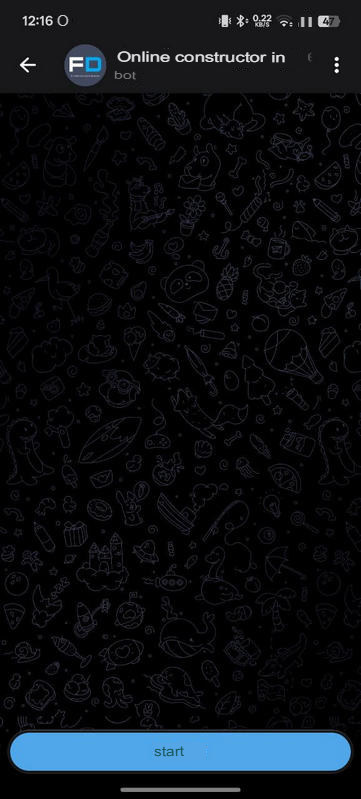
- Open Telegram and search for @FormDesignerBot .
- Click "Start".
- The bot will automatically provide:
- your personal chat_id (for sending private messages),
- Your channel's chat ID
![8.png]()
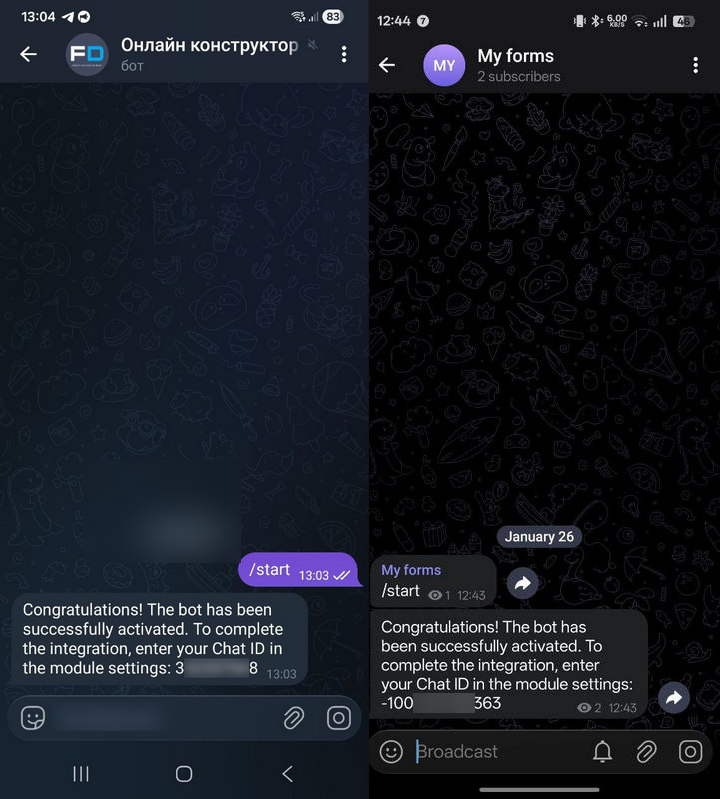
💡 Advantage : @FormDesignerBot supports sending notifications to both private messages and channels/groups - without manually searching for IDs or complex API requests.
Step 2: Choose where to receive requests—in private messages or in a group
With @FormDesignerBot you can customize any receiving method :
Option A: Private Messages
The bot will send you requests directly —ideal for freelancers, sole proprietors, or small businesses.
Option B: Channel or Group
For a team: create a Telegram channel (e.g., "Applications - Repair Studio") or group, add employees to it, and enable sending to it.
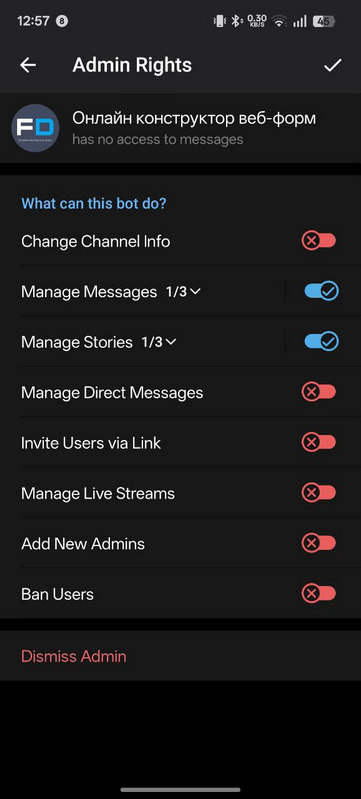
🔑 Important : If you select a channel, make @FormDesignerBot an administrator —otherwise, they won't be able to post messages.
Step 3: Create a form in FormDesigner
This is where FormDesigner comes into play – a designer where you can create any form , quiz or online calculator in 10 minutes.
Examples of forms that work well with Telegram:
- Simple request: “Name + Phone”.
- Quiz: "What type of cleaning do you need?" → service selection + quote.
- Form + calculator : “Calculate the cost of repairs” → final price + “Submit request” button.
All this can be created visually:
- Go to FormDesigner .
- Choose a template or create a form from scratch.
- Add fields: name, phone number, service, comment, area, etc.
- Customize the design to suit your brand.
Step 4: Connect Telegram via @FormDesignerBot
Now comes the simplest part:
- In the FormDesigner editor, open Modules .
- Select "Telegram" .
- Insert: chat ID (your personal or channel ID - you can also get it through the bot).
- Customize your message template. For example:
🔔 New application! Name: {name} Phone: {phone} Service: {service} Comment: {comment} Source: {pageurl} - Click Save → Send Test Message .
If you received a notification in Telegram, congratulations! The system is working.
💡 Tip : @FormDesignerBot lets you change the chat_id at any time —just update it in the form settings, and requests will go to the new location.
How to Strengthen Your Ticket System
- UTM tags : add the traffic source to the message, for example,
utm_source=instagram. - Integration with CRM : In FormDesigner, you can transfer data to Nethunt CRM, Hubspot and other systems.
- Spam protection : Enable captcha in FormDesigner
Common Mistakes (and How to Avoid Them)
| Error | Solution |
|---|---|
| ❌ The bot doesn't post to the channel | Make sure @FormDesignerBot is a channel administrator |
| ❌ No notifications | Check it out chat_id - you can get it directly from @FormDesignerBot |
| ❌ Applications are coming, but without data | Make sure the field names in the template match the macros in the form ( {phone}, not {tel} ) |
| ❌ Forgot to test | Always submit a test application before launching! |
Conclusion: Your first client is already waiting on Telegram
Receiving applications via Telegram isn't just an IT gimmick. It's a basic tool for any business that wants to keep its customers engaged .
And with FormDesigner and @FormDesignerBot you can set this up in 15 minutes :
- created a form ,
- connected Telegram via the built-in bot,
- We received the first application while the competitor was still checking his email.
👉 Try it for free :
Create your first form + calculator or quiz in FormDesigner, connect to Telegram via @FormDesignerBot , and start generating leads in real time.
Bonus: 5 Steps to Submitting Applications on Telegram Checklist
- ✅ Open @FormDesignerBot in Telegram
- ✅ Get chat_id
- ✅ Select - PM or channel/group
- ✅ Create a form in FormDesigner
- ✅ Connect Telegram and submit a test application
P.S. @FormDesignerBot has built-in support: if you get confused, just text "Help" in the bot. We'll help you set up notifications anywhere: in private messages or in a group.