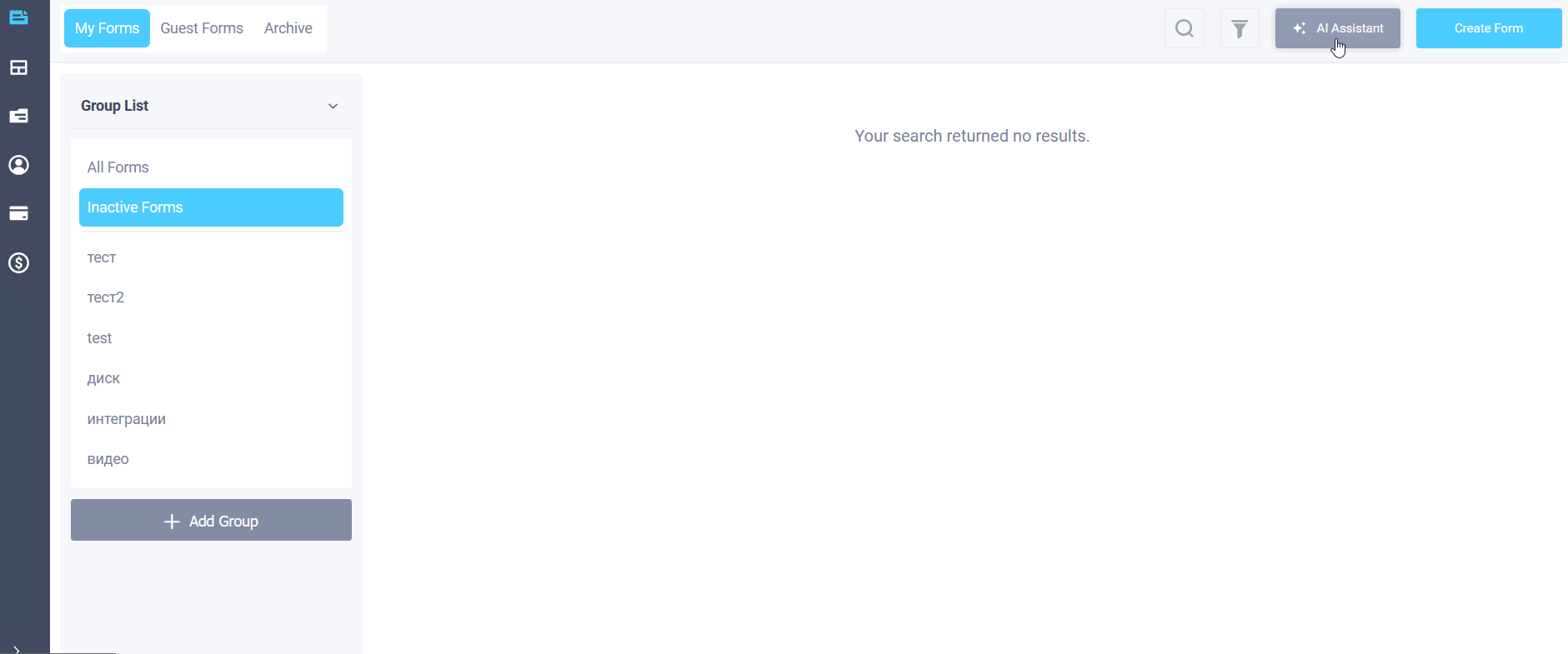
A built-in AI assistant has been added to the FormDesigner personal account. It works directly within the builder, helping you outline the form structure, complete fields and answer options, create the start page text, configure the scoring formula, and fine-tune the design.
How to create a form
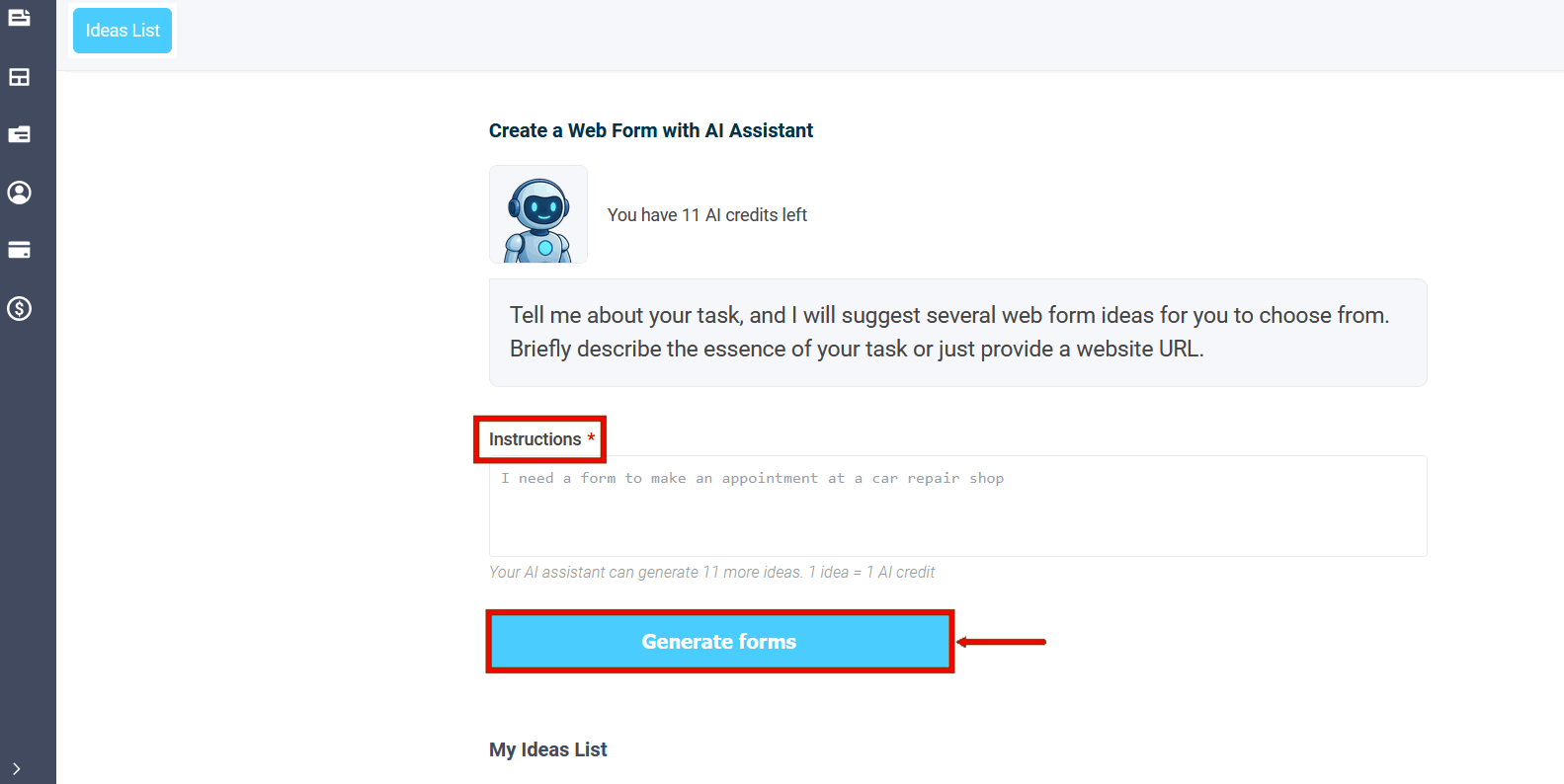
Write what form you need, or just indicate the website address.
The assistant will analyze the task and suggest several ideas with a title and brief description. Select a suitable one and create a form in one click. If none of the options work, describe your idea in your own words: what the form should include, who it's for, and what result you need. You can then use this description to create a form.
Home page

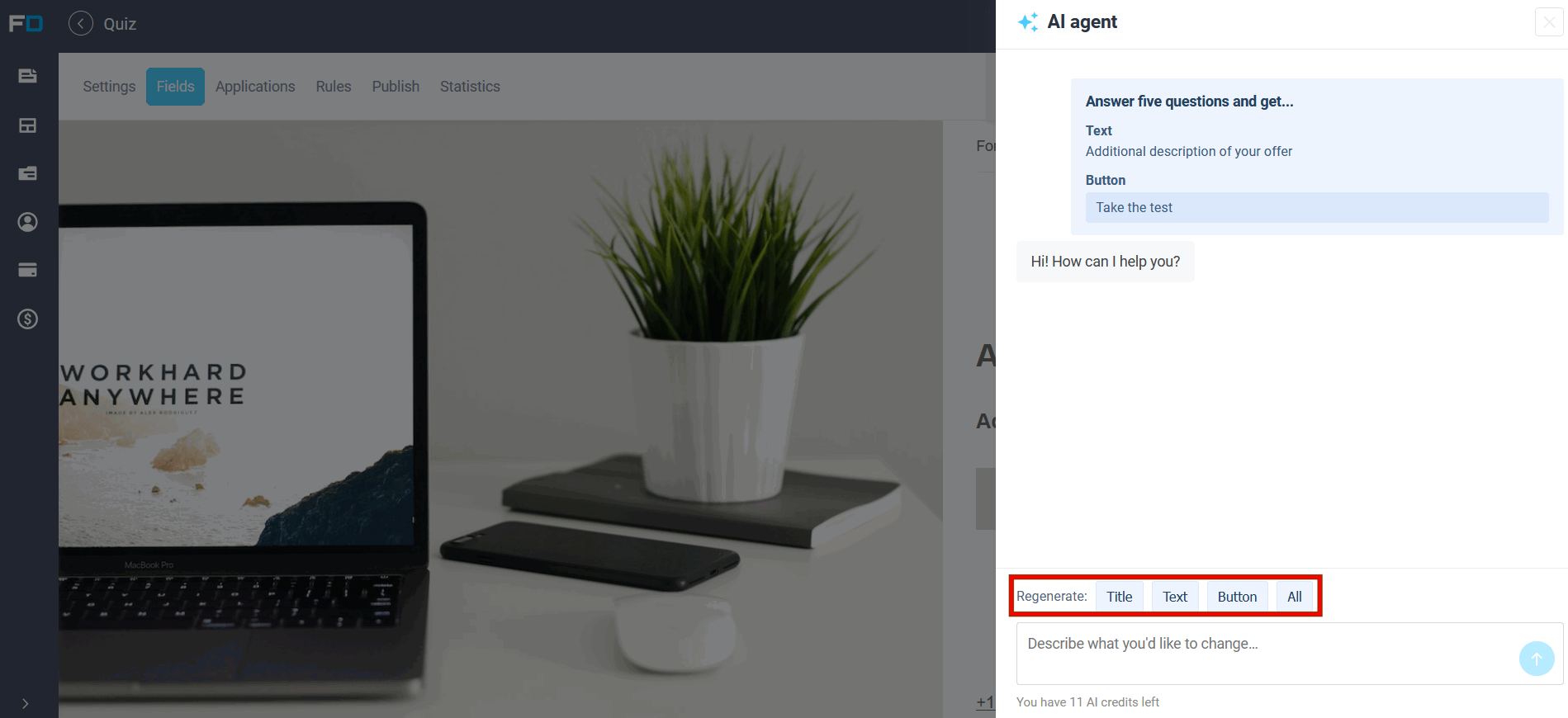
If the form has a splash screen before the questions, the wizard can generate data for it: the title, text, and button. You can rewrite the entire form or just the relevant parts, for example, making the call to action shorter or clearer. The result is applied in the editor, after which you can refine it manually.
Fields and answer options
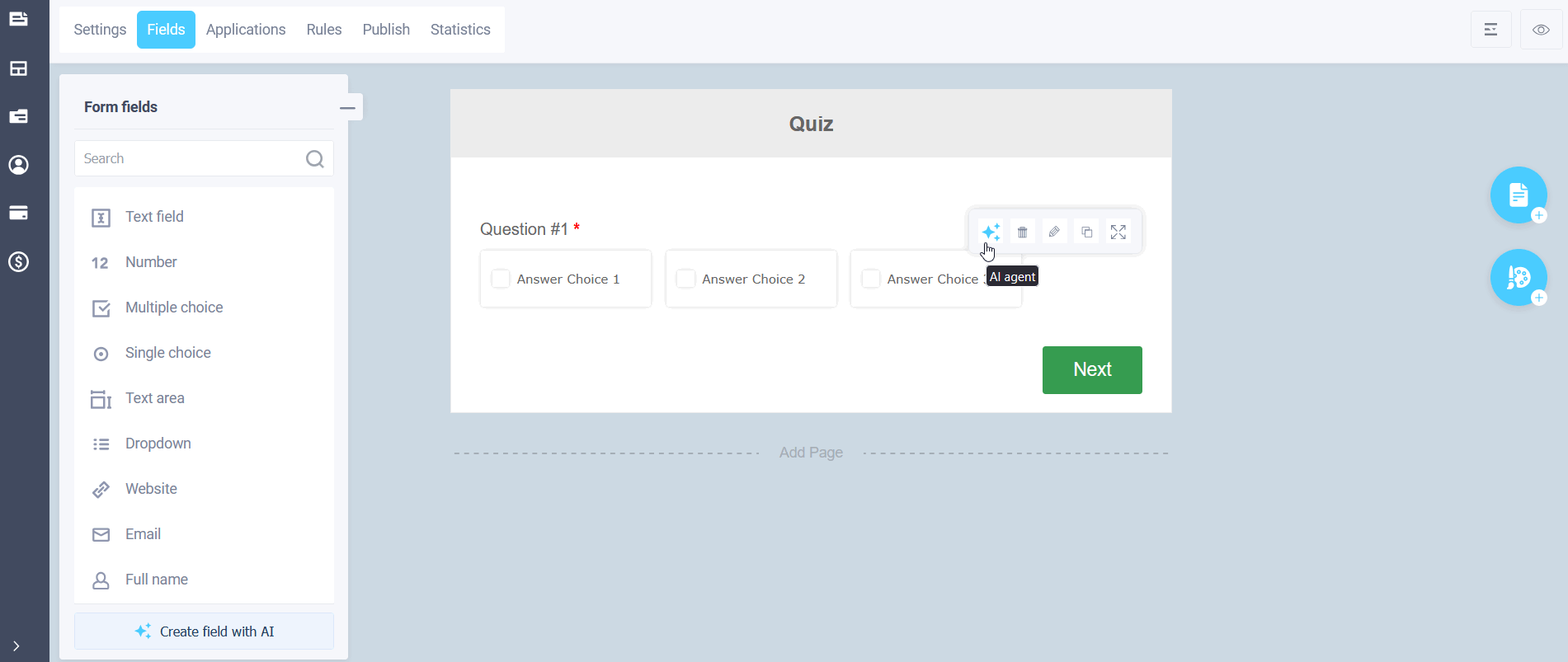
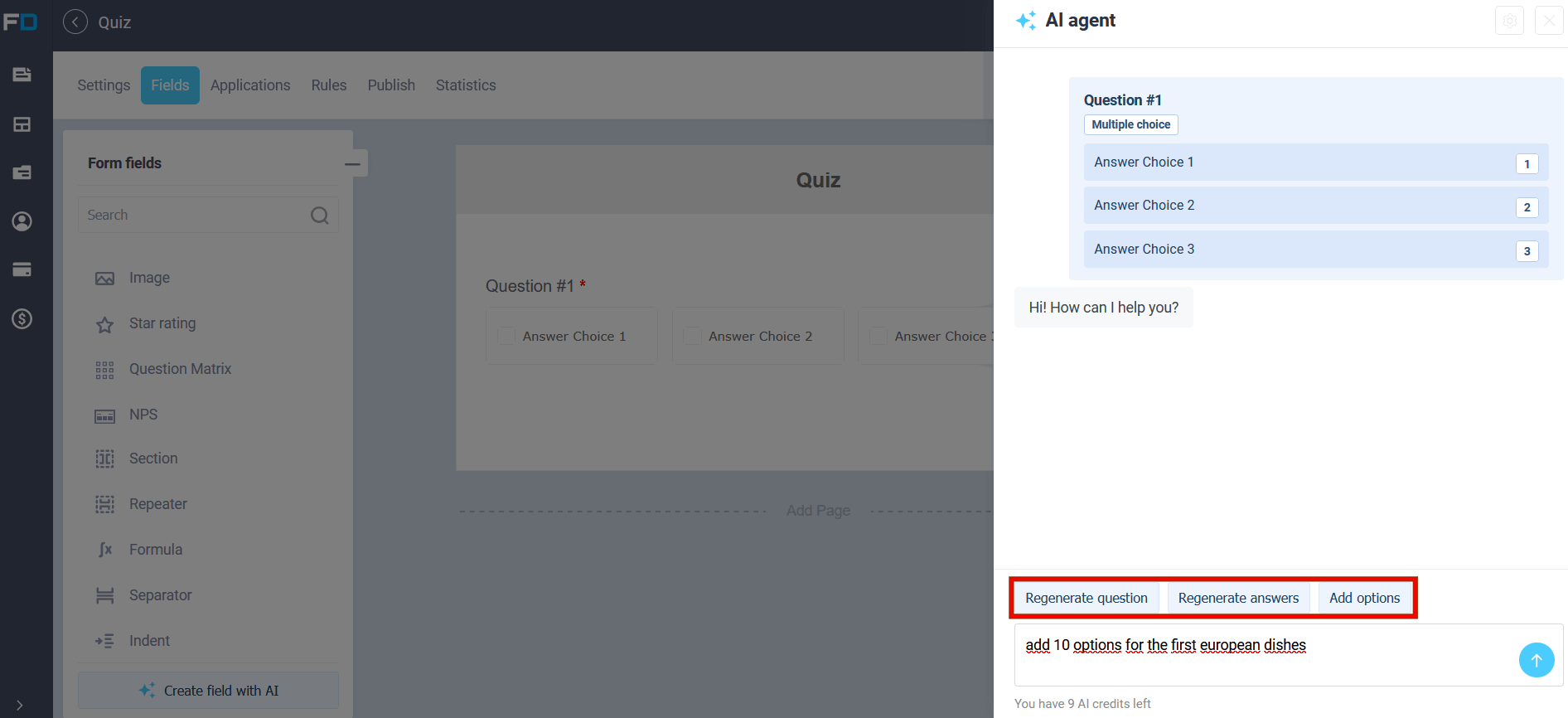
Right in the editor, you can ask the AI to add a new field or rewrite an existing one: refine the question wording, regenerate answers, or add additional options. This is convenient when you already have a basic form but need to quickly fill gaps or tailor the text to your audience.
Formulas and points
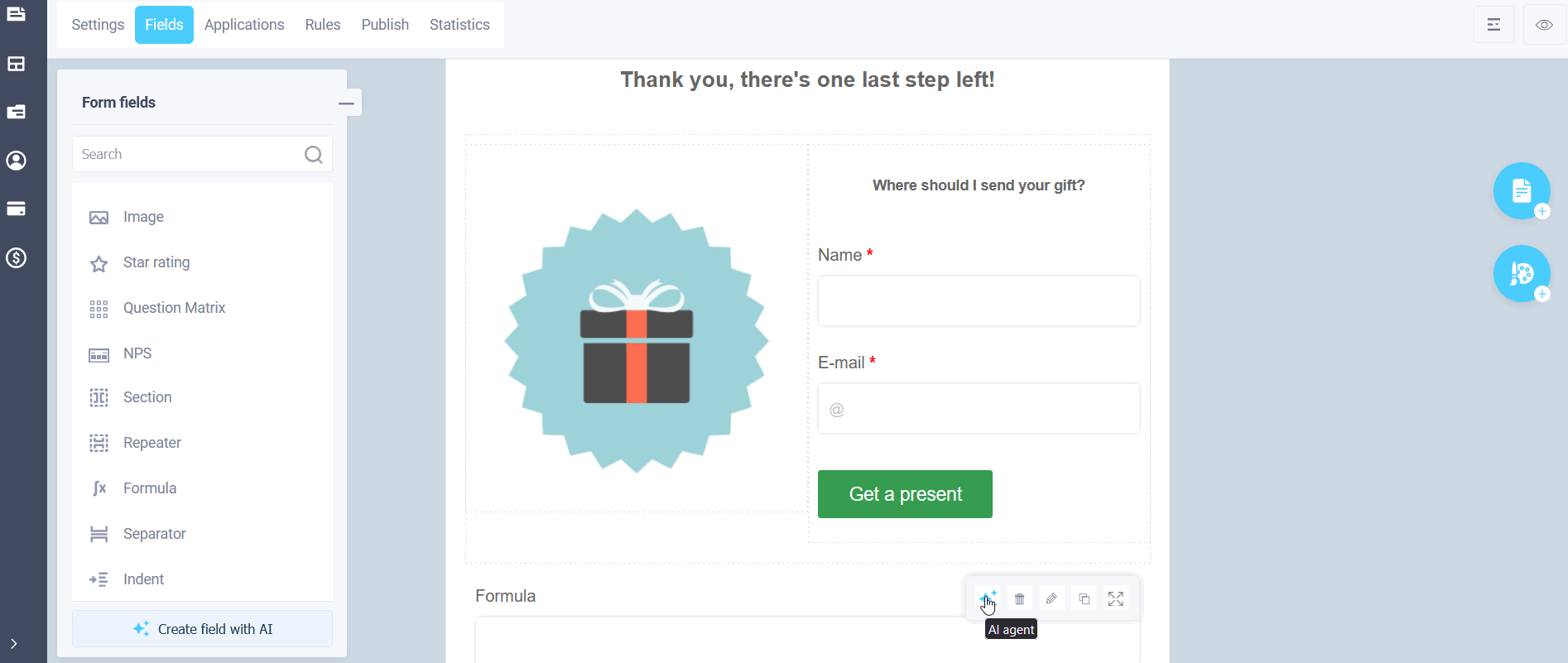
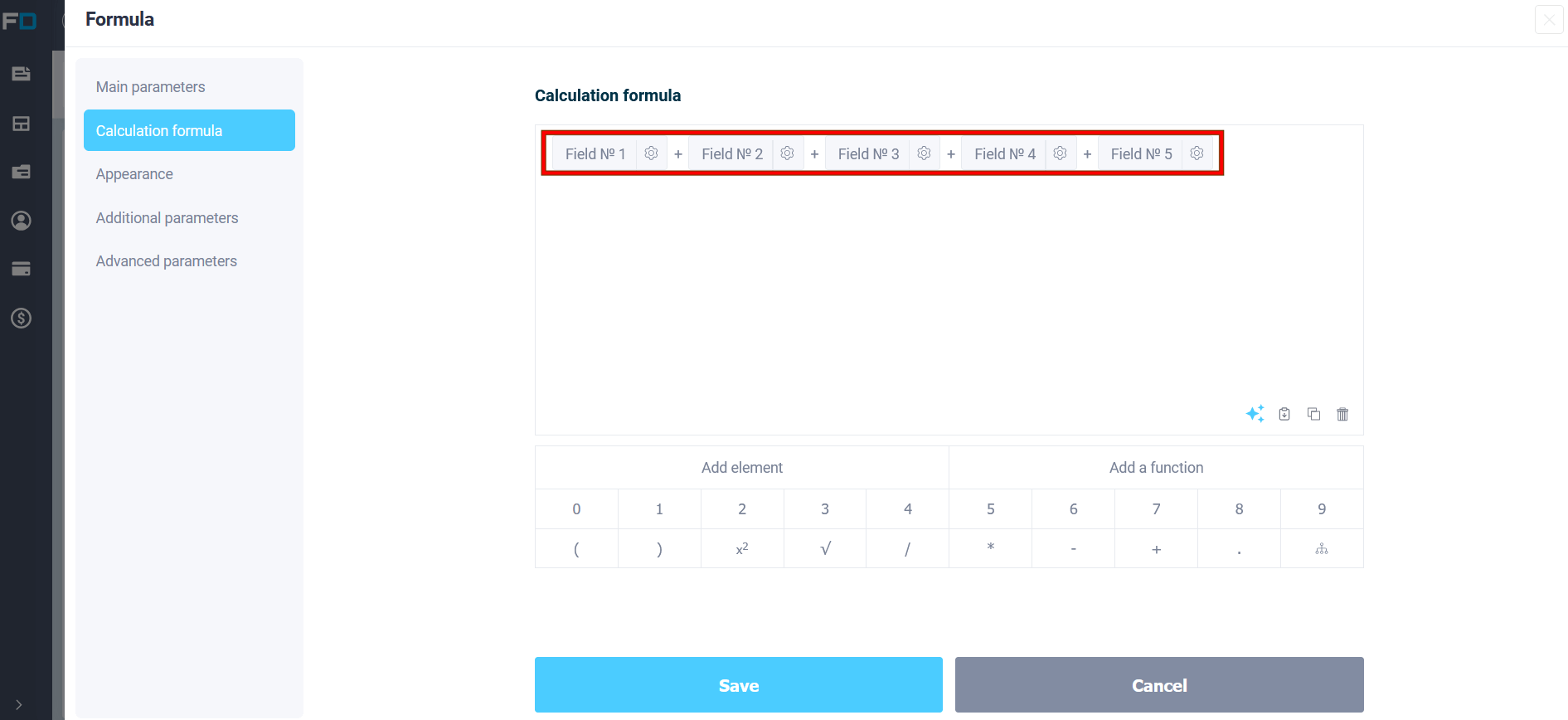
To enable the AI agent, you can click either in the element settings or in the formula editor:
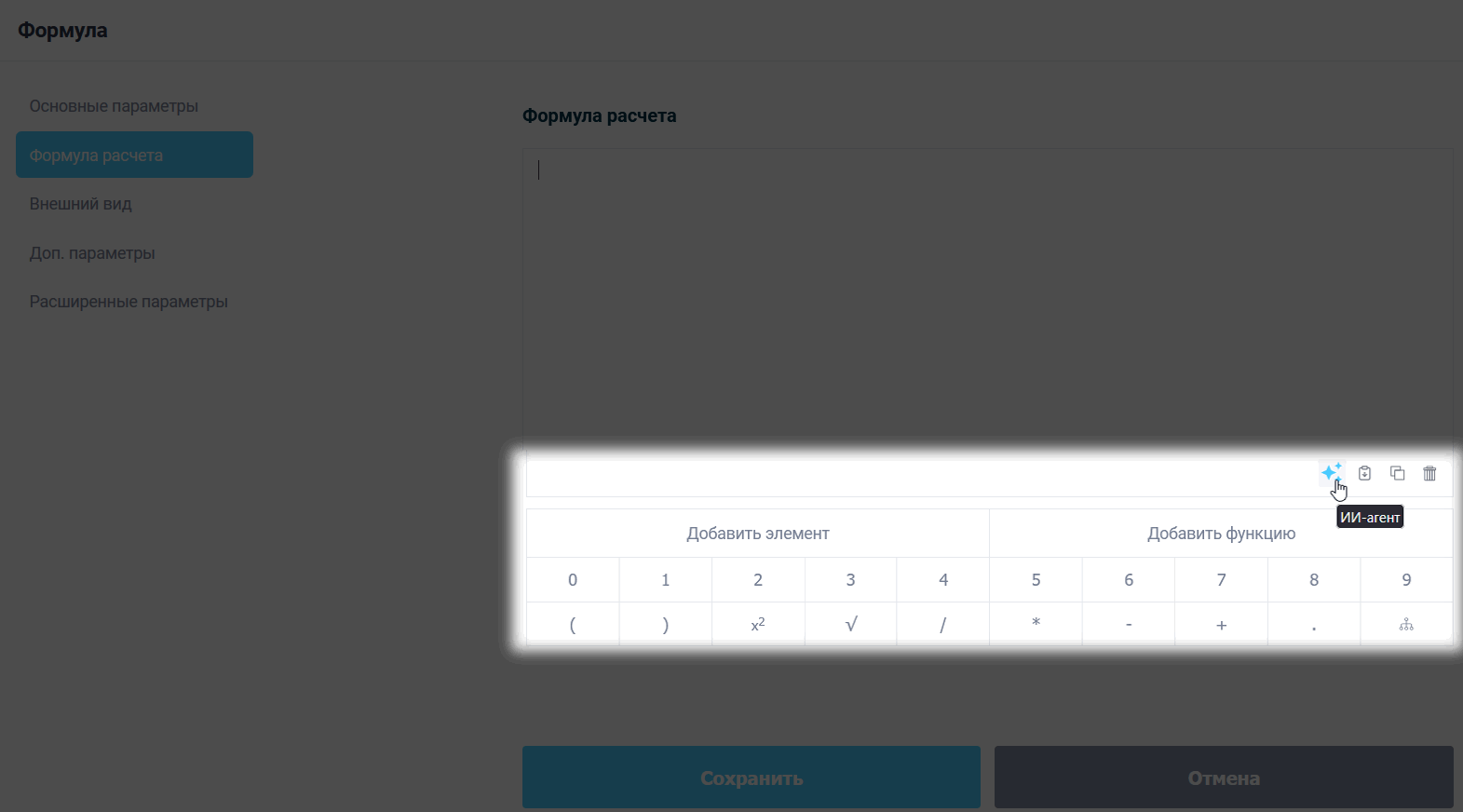
For calculators and quizzes, the assistant helps you assemble an equation, assign points to answer options, and add conditions. You can describe the logic in plain language, for example, "calculate the sum of selected services" or "award points for quiz answers," and apply the result in the formula editor.
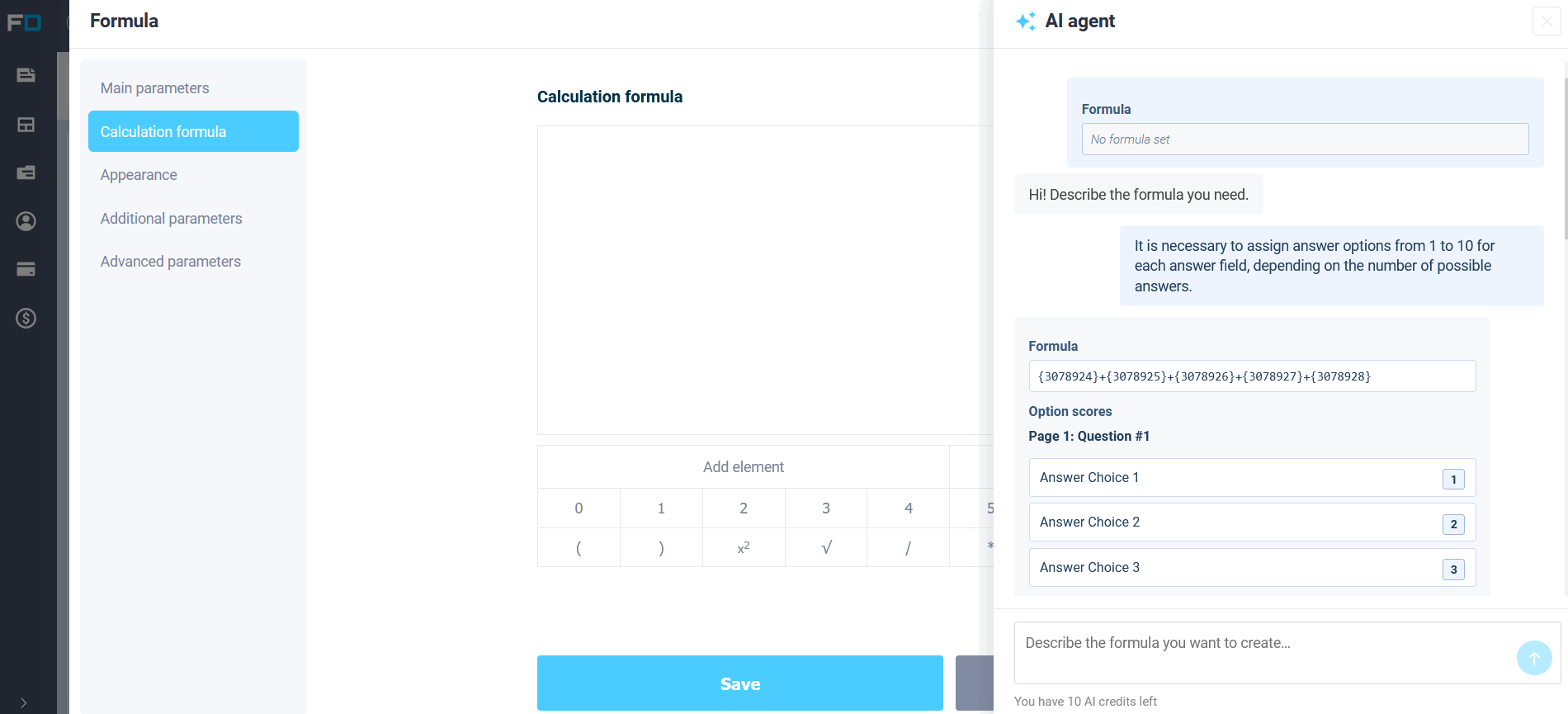
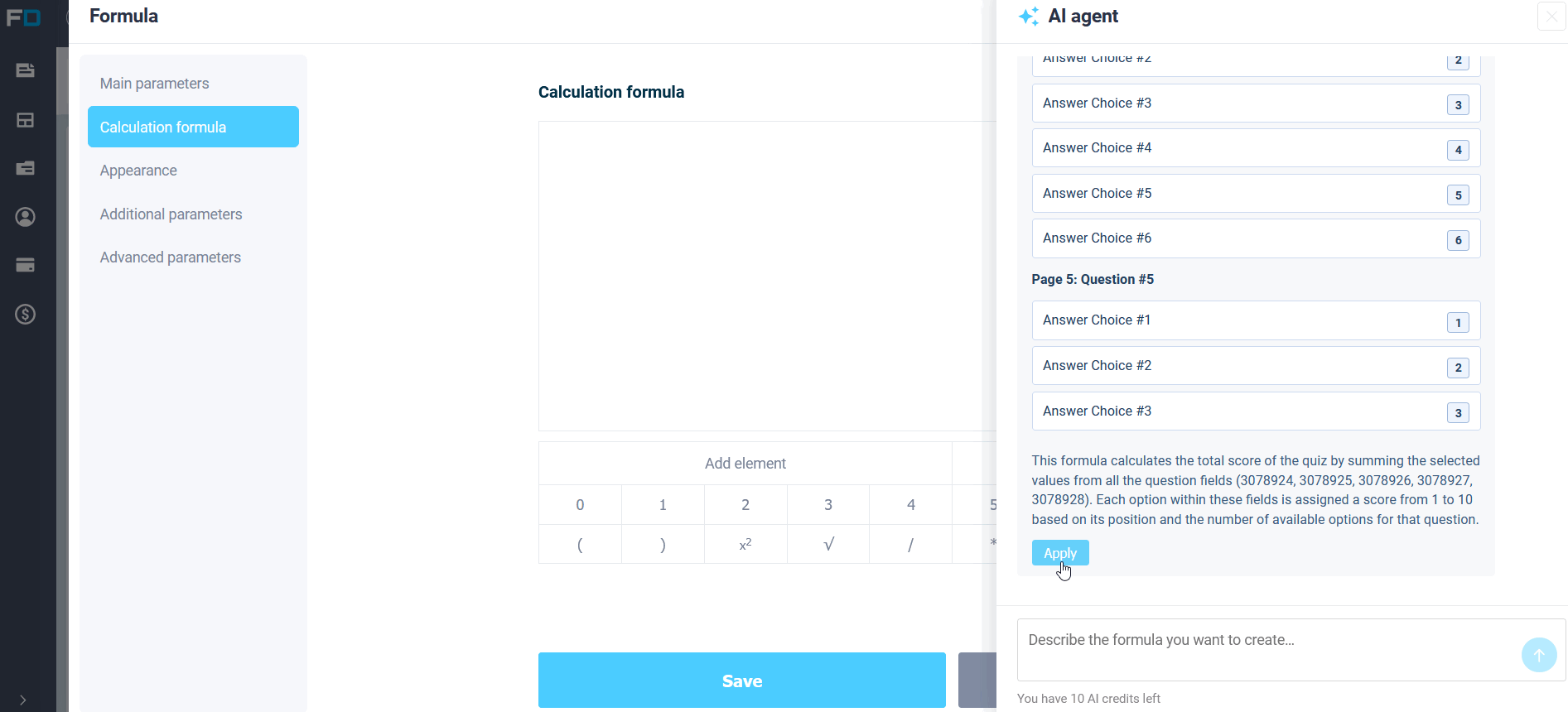
Once applied, the editor will display a formula with fields and the specified points for the answer options.
CSS styling
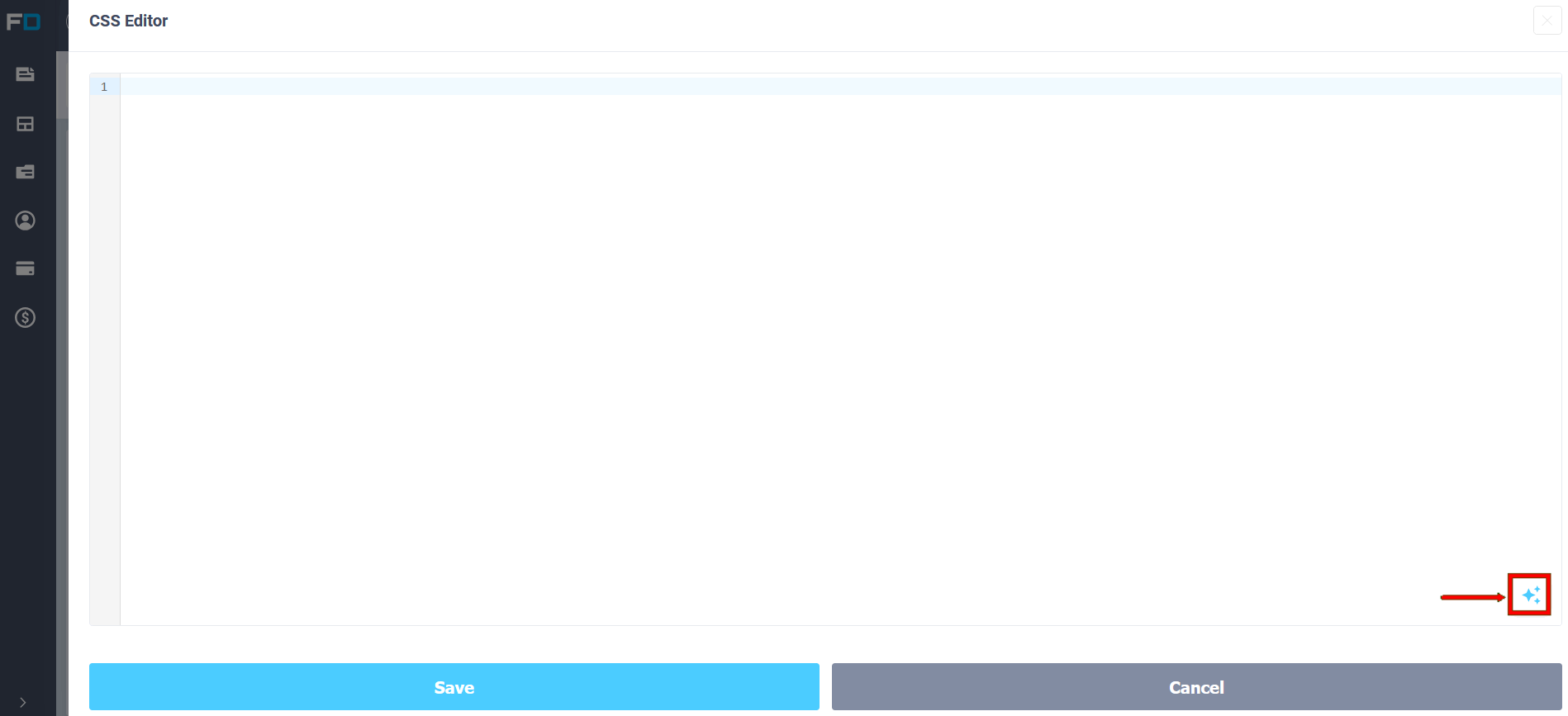
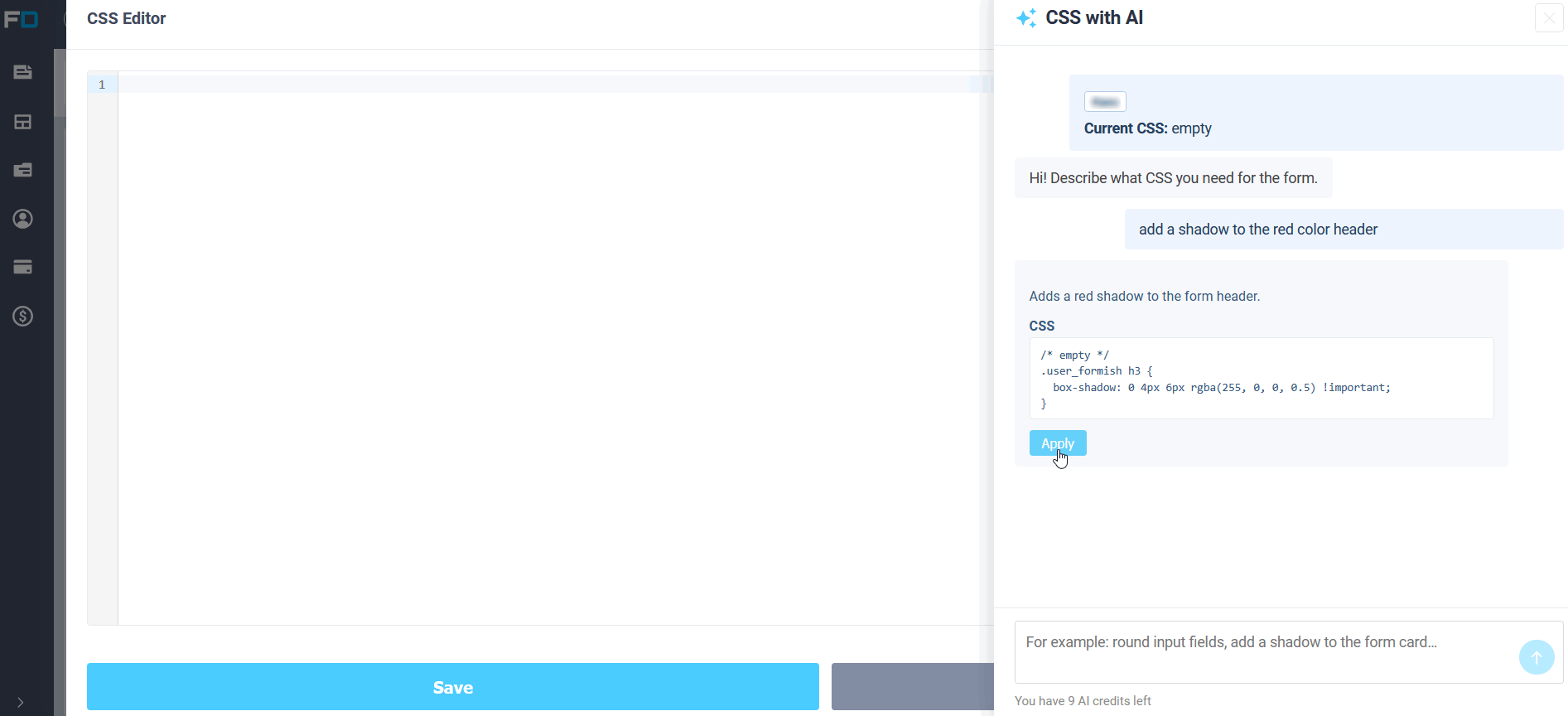
If you need fine-grained control, you can describe your edits verbatim in the CSS editor: round margins, add a shadow, adjust the indents, and apply the suggested code. You can check and adjust everything manually before saving.
How is this different from MCPs and external AI clients?
The built-in AI assistant works within FormDesigner: there's no need to install anything, enable OAuth, or configure third-party apps. Open your personal account and you can immediately generate ideas, fields, a start page, formulas, and design.
MCP Connector is another option. It connects FormDesigner to external AI clients like Claude, Cursor, or ChatGPT. This makes it easier to automate work externally: create and edit forms in bulk, and manage requests and logic via chat in your favorite tool. This requires setting up a connection, but offers more API tools.
In short: a built-in assistant for quick work right in the designer. MCP is for those who already use an external AI client and want to manage FormDesigner from there. Both approaches can be used together: create a draft using the assistant in your dashboard, and manage more complex scenarios using MCP.
The form created by the assistant remains a standard FormDesigner form: you can further edit it in the designer, changing the logic, theme, and settings.