FormDesigner allows you to display a form one question at a time. Respondents see one field or section on the screen, rather than the entire page at once. This makes it easier to conduct a quiz, test, or long survey: there's less text on the screen, making it easier to maintain attention.
We've also improved page shuffling. Previously, the entire form would be shuffled. Now, the introduction and contact information can be pinned, while only the question pages can be shuffled.
How quizzes were created in the past
To keep the quiz focused on a single question, the form was divided into pages: one question, one page. Ten questions, ten pages. Buttons, progress, and logic were all on the page level, not the fields.
If, after selecting an option, the next question needed to be opened immediately, custom JavaScript was added to the form.
A separate page for each question is no longer required. Questions remain on a single page or across multiple chapters, and the "one question at a time" mode automatically displays them step by step. Automatic navigation after selection in the radio buttons and list is enabled in the display settings, without requiring a separate code.
How to enable
Open the Elements tab and the hamburger menu next to the preview.
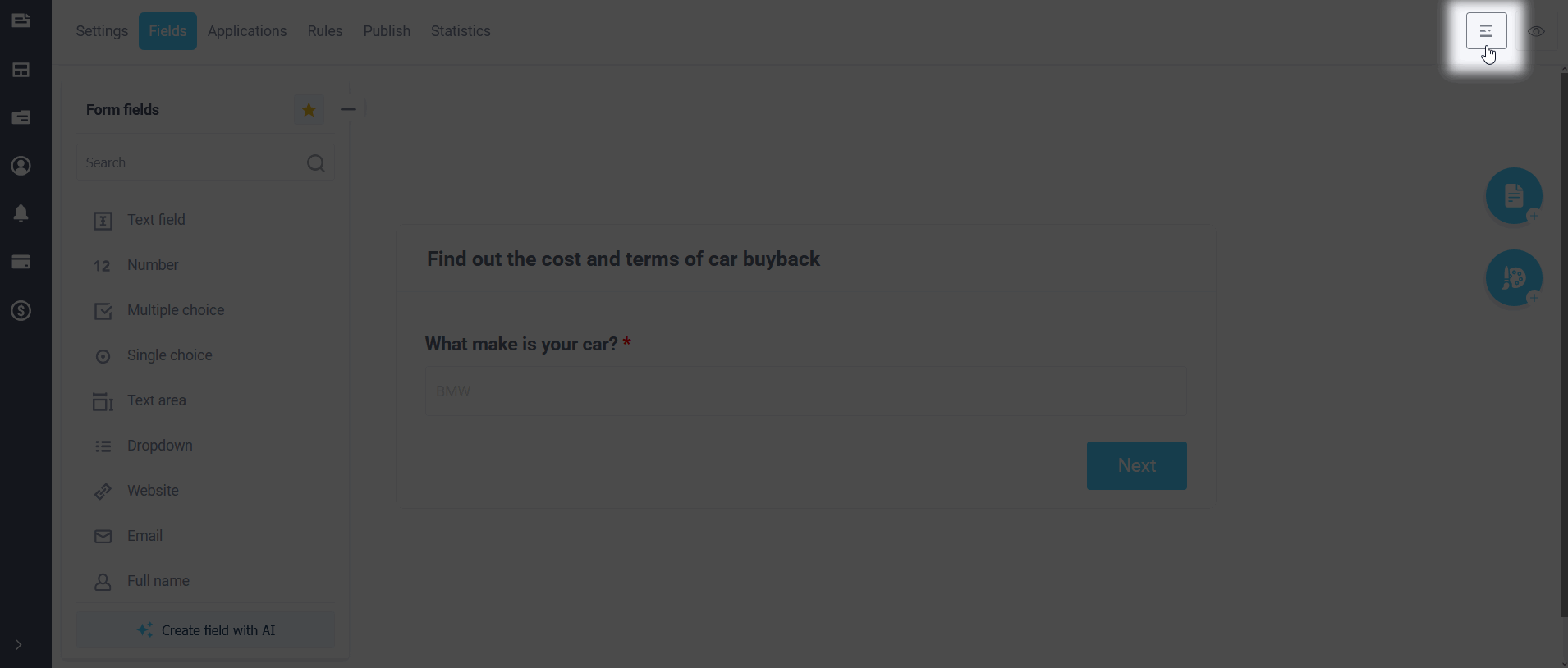
Select "Display settings".
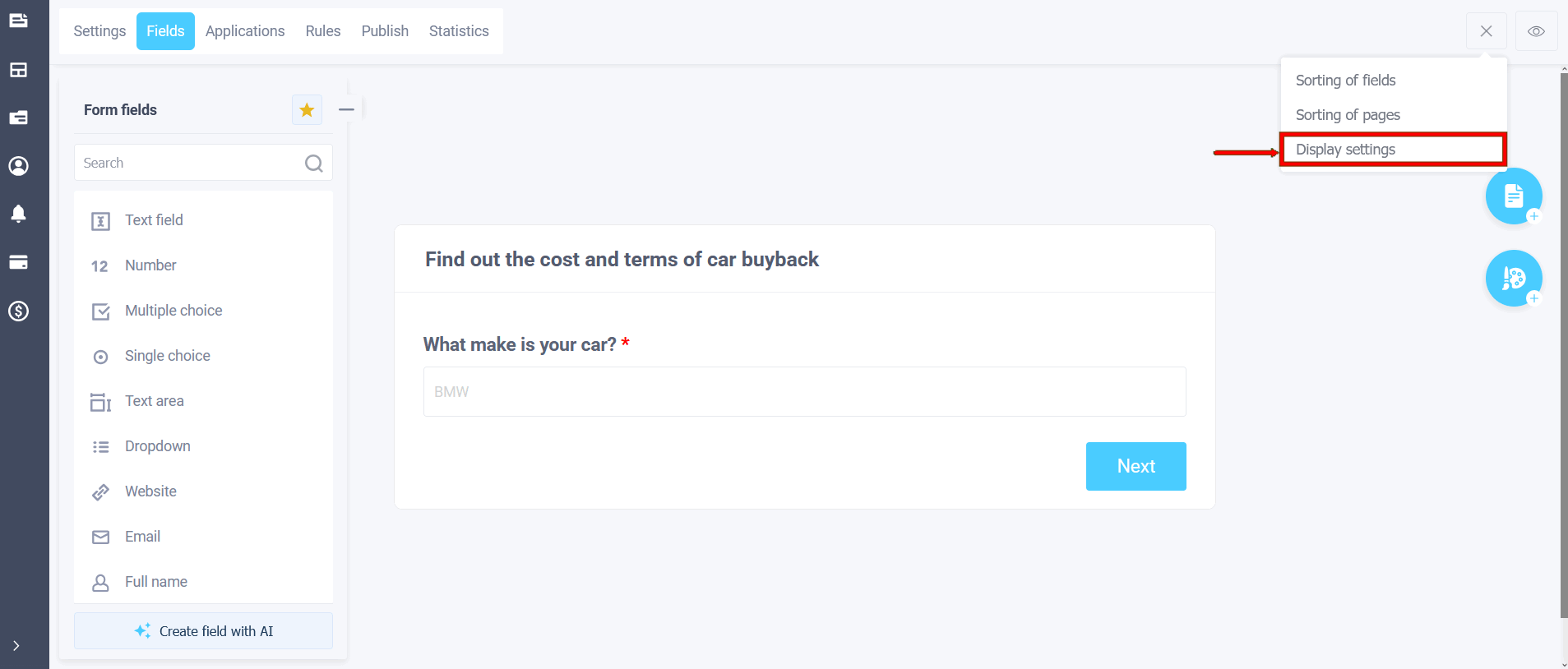
In the "Display settings" block, enable "Show one question per page".
In the designer, all page fields remain visible for editing. A box appears in the preview: "Respondents see one question at a time."
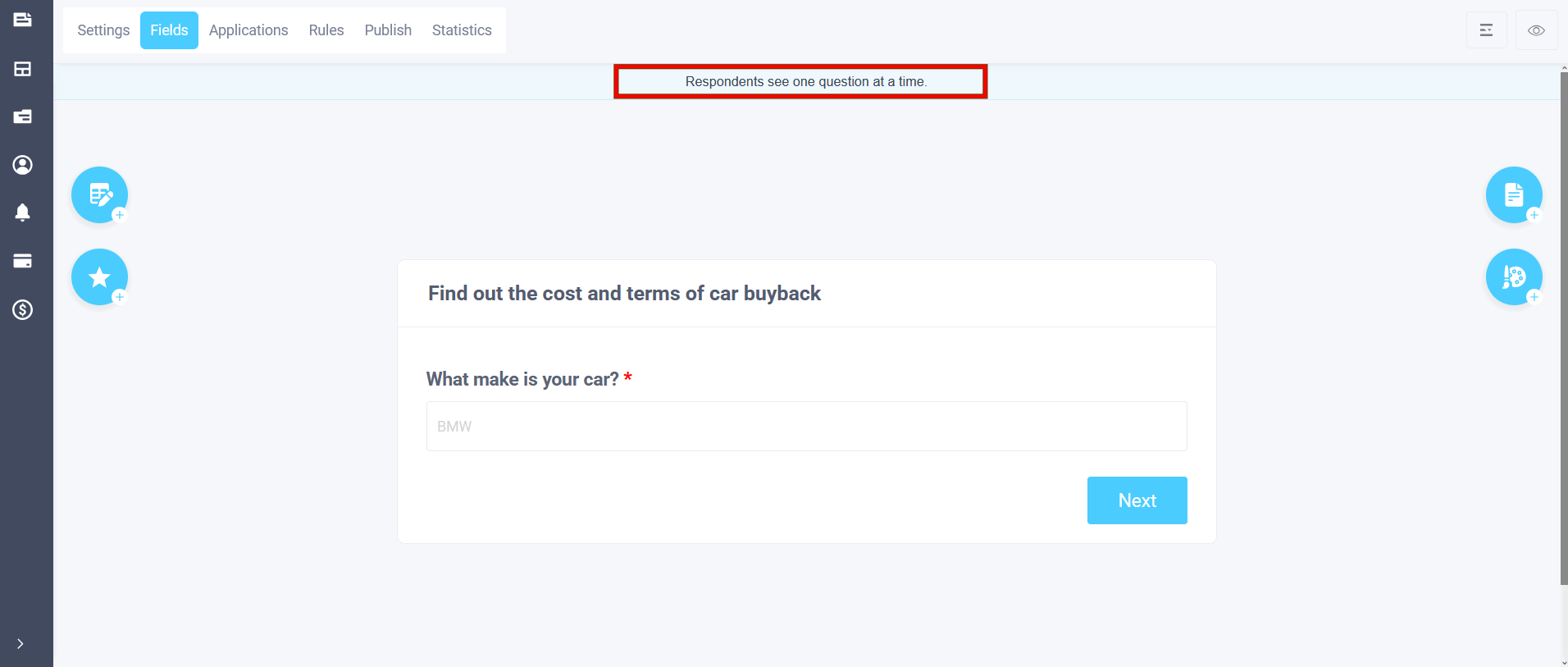
How the form works
On the published form, the following elements are considered one step:
- all input fields, checkboxes, radio buttons and lists
- HTML block
- picture
- video
- spoiler
The section is displayed in its entirety. Hidden fields, indents, separators, and utility buttons are not converted into steps.
Pages are still needed as chapters: introduction, questions, and contacts. The current page's questions are shown one at a time, then the next page.
Consultant N is assigned to question N on this page. Tabs and the page list are not displayed in this mode. Progress is calculated by steps, not pages. This mode can be turned off.
Step settings
There are several options next to the switch.
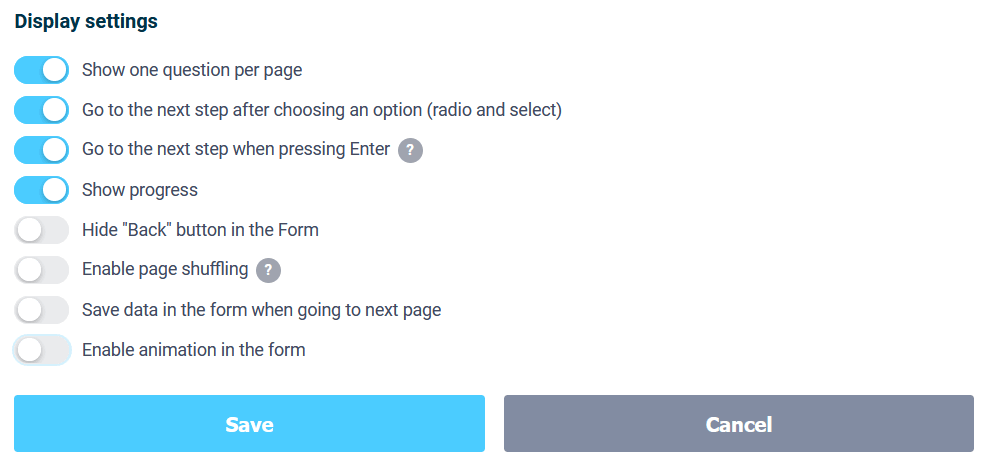
"Proceed to the next step after selecting an option (radio buttons and lists): After selecting, there's a short pause to make the answer visible, then the transition. Previously, custom JavaScript was used for this.
"Go to the next step when I press Enter." In a multi-line field, Enter creates a new line. Next, press Ctrl/Cmd+Enter or click the "Next" button.
You can also enable "Show progress", hide the "Back" button, and keep the step animation on the same slide as the pages.
Shuffling pages
Quiz determines how many questions are visible on the screen. Shuffling determines which pages the respondent sees. These are different settings, and they can be enabled separately or together.
In Display Options, enable Enable page shuffle.
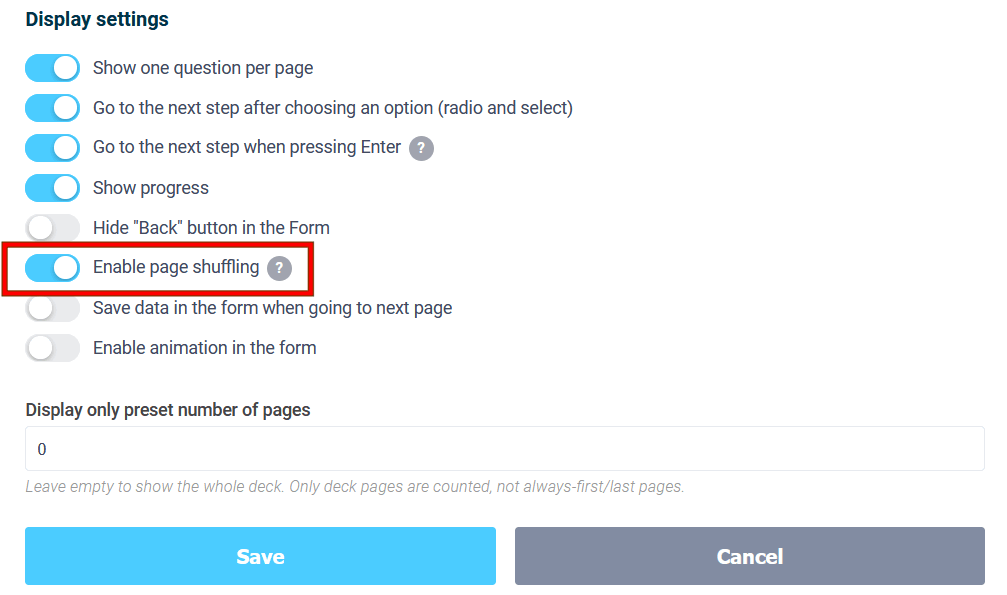
Three blocks will appear in the "Page Sorting" and in the page list:
Always at the beginning : introduction, instructions, consent. Everyone sees them, in no random order.
Deck : pages from which a random set is assembled. The "how many pages to show" limit only counts these.
Always at the end : contacts, results
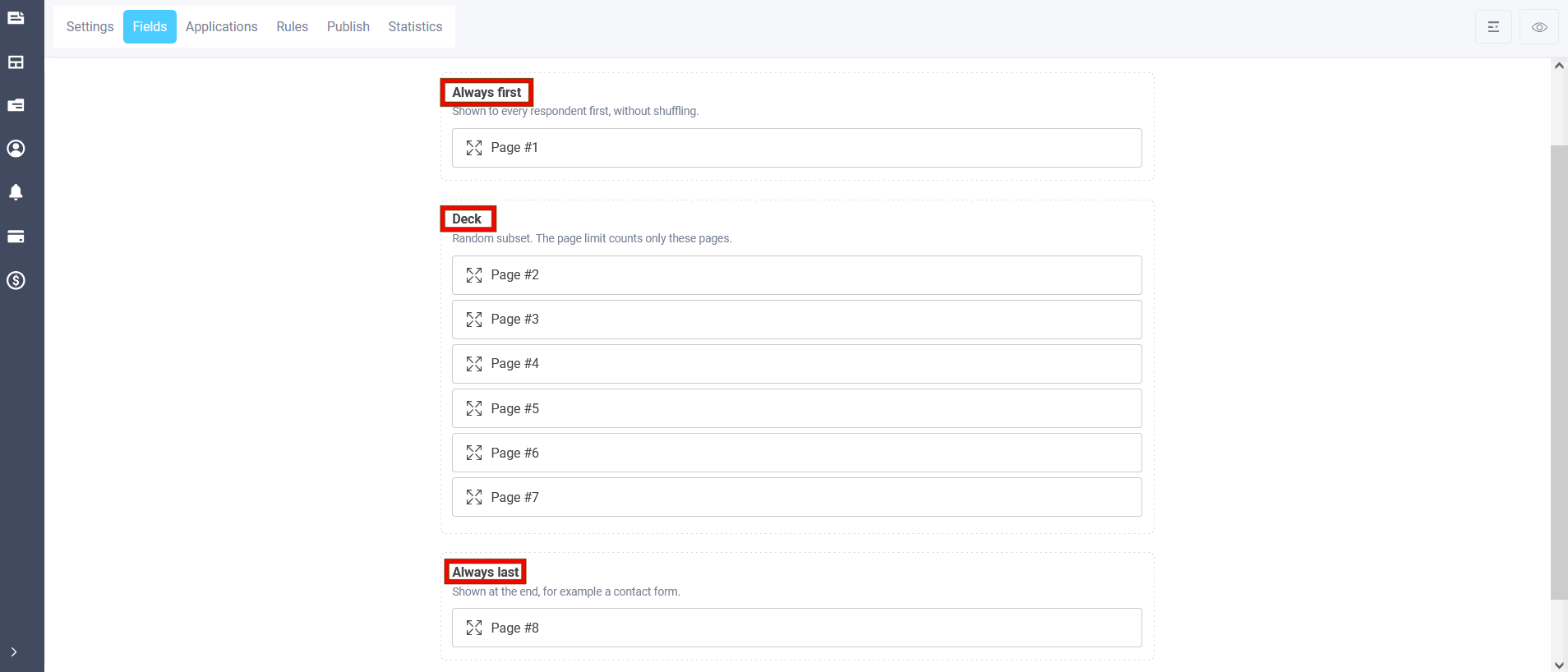
Pages are dragged between blocks. The new page is added to the deck. The order in the designer and preview is not shuffled, so all pages can be edited.
If the form has rules configured for form pages, shuffling is not applied: the form follows the pattern.
Why is this in real forms?
A typical test or assessment. There are 100 questions in the question bank, but the respondent only needs 25. Instructions can't be shown mid-sample, and contact information or the results page can't be shown before the questions. The 25-question limit only counts the number of pages. The respondent goes through an introduction, 25 random pages, and a finale: 27 screens, not 102.
A long survey or lead qualification. The offer or explanation starts with a name and phone number at the end. If all 40 clarifying pages were shown to everyone, some people would abandon the form halfway through. Questions are placed in a deck, with a limit of, say, 10. Introductions and contact information are not included in the limit and don't fluctuate throughout the form.
Another scenario: to prevent a neighbor from taking the same test in the same order. The edges are fixed, but the set of questions in the middle is different each time.
Step-by-step display and shuffling are independent of each other. You can leave the pages as is and only shuffle the questions. You can also include one question per screen without randomization. If you want both effects, enable both settings and test them on the published form: the pages are not intentionally shuffled in the preview.