
The designer recently added a single-question mode. It adds two settings that are especially useful for long forms: progress saving and logic for individual answer options.
Save filling progress
The respondent closed the tab, left the phone, and returned later. If progress saving is enabled, the answers are there. The form won't need to be filled out again. This is especially noticeable in a long quiz or survey.
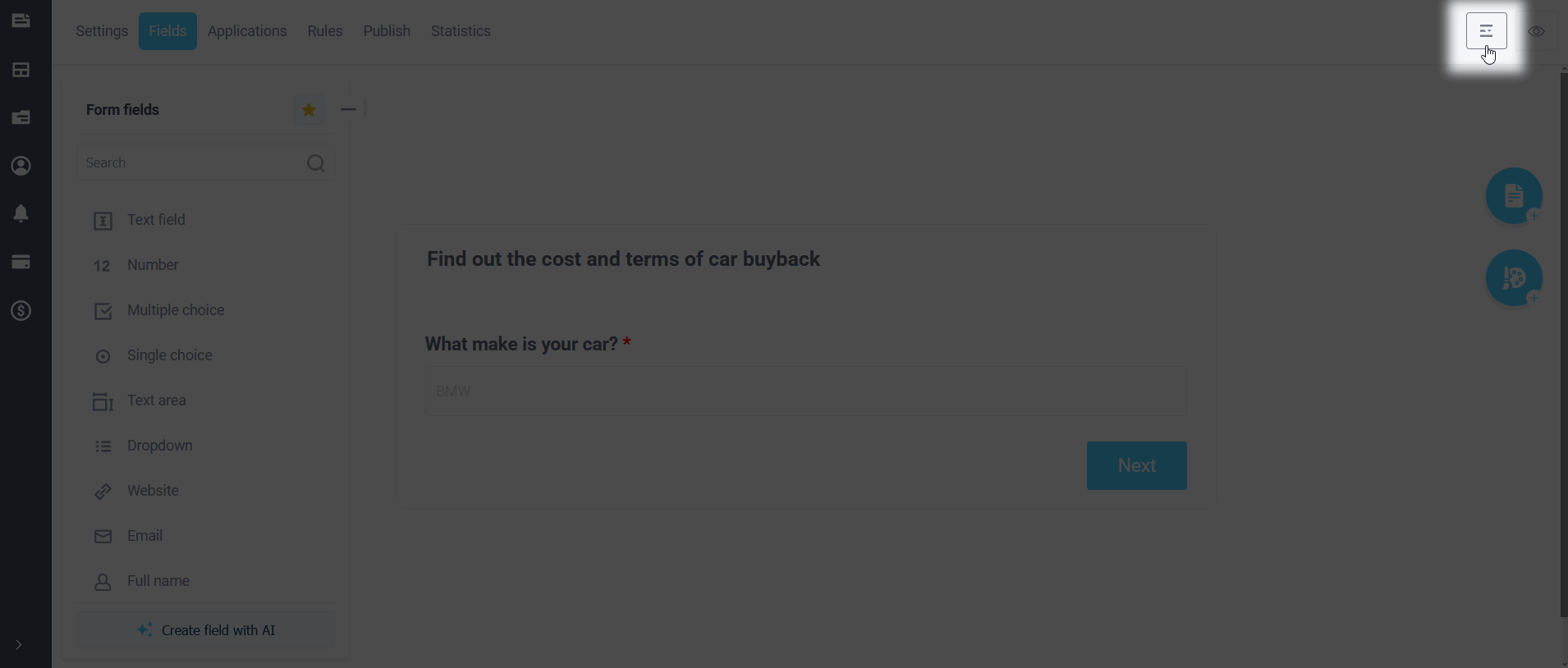
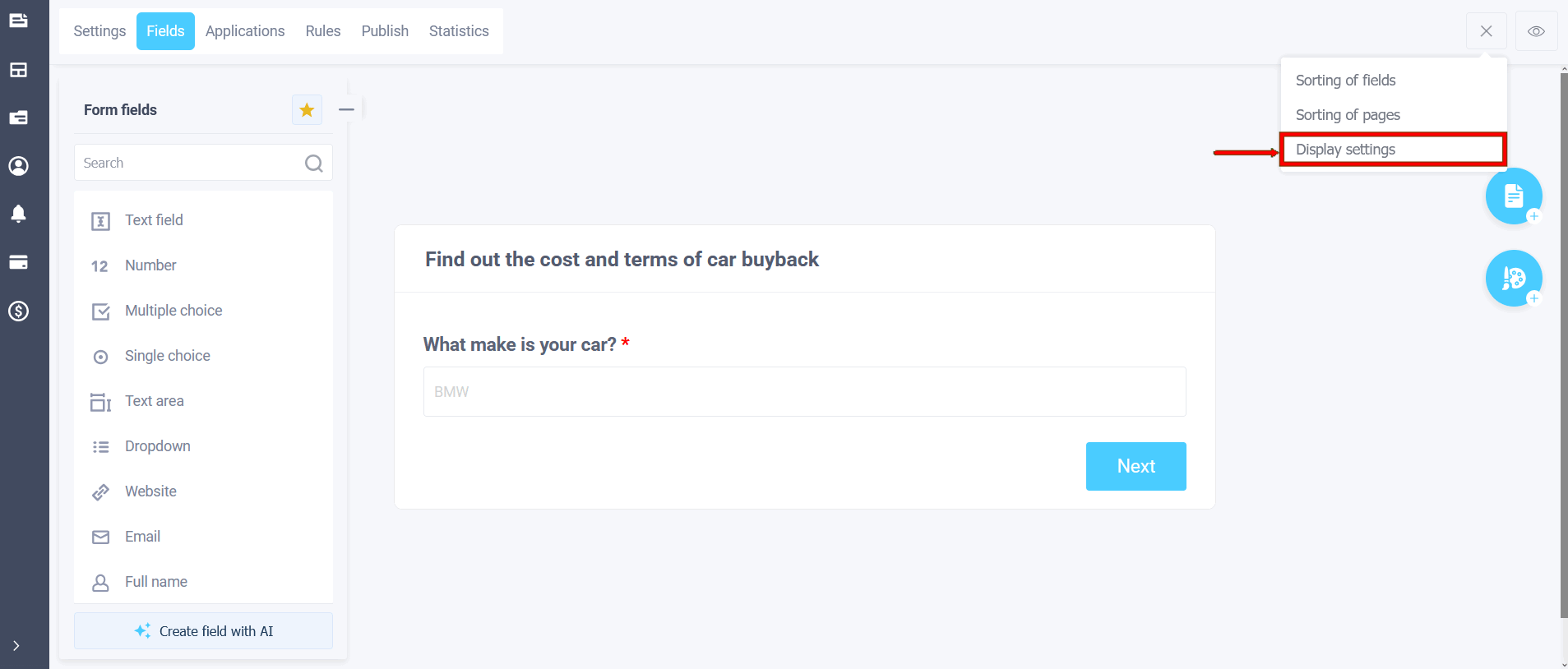
Open the Elements tab, the hamburger menu next to the preview, and select Display Options.
Enable "Save form progress." By default, the toggle is off. This works for both single-page and multi-page forms.
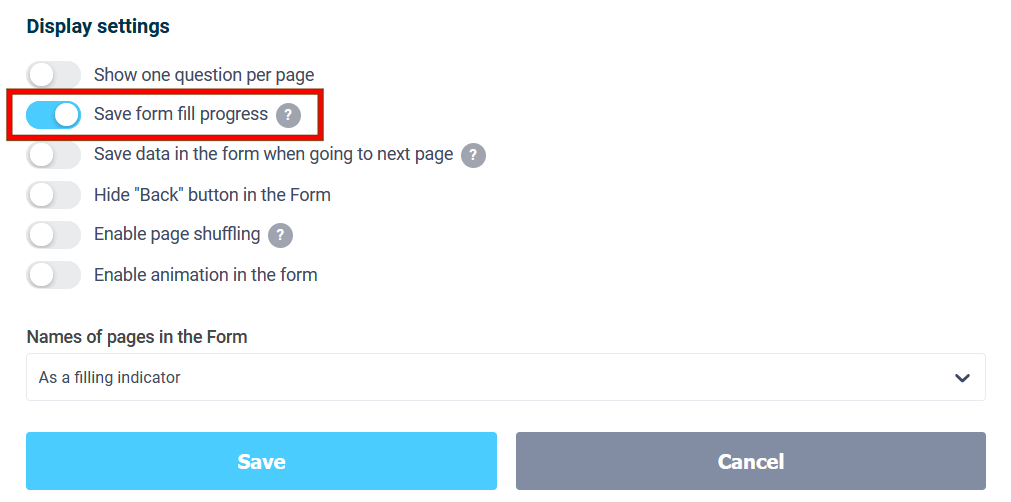
The draft is stored in the respondent's browser, not on the server. This is not a "Form Saving" module or the "Save form data when moving to the next page" option. Progress can be enabled with both the quiz and the step-by-step form.
Responses are entered as long as the form remains unchanged. Once the new version is saved, the old draft will not be returned. After successful submission, the draft is deleted.
Files, signatures, audio and video recordings, passwords, and captchas are not saved. In "one question at a time" mode, the current step is also saved.
The draft is written only on the published form: on the page, in the iframe, and in the website embed. It is not available in the builder or preview.
Show or hide option
Logical rules previously showed or hidden an entire field. Now they can target a specific list item.
Open "Logic" → "Form Field Rules." In the "To" block, next to "show" and "hide," you'll now see the "show option" and "hide option" actions.
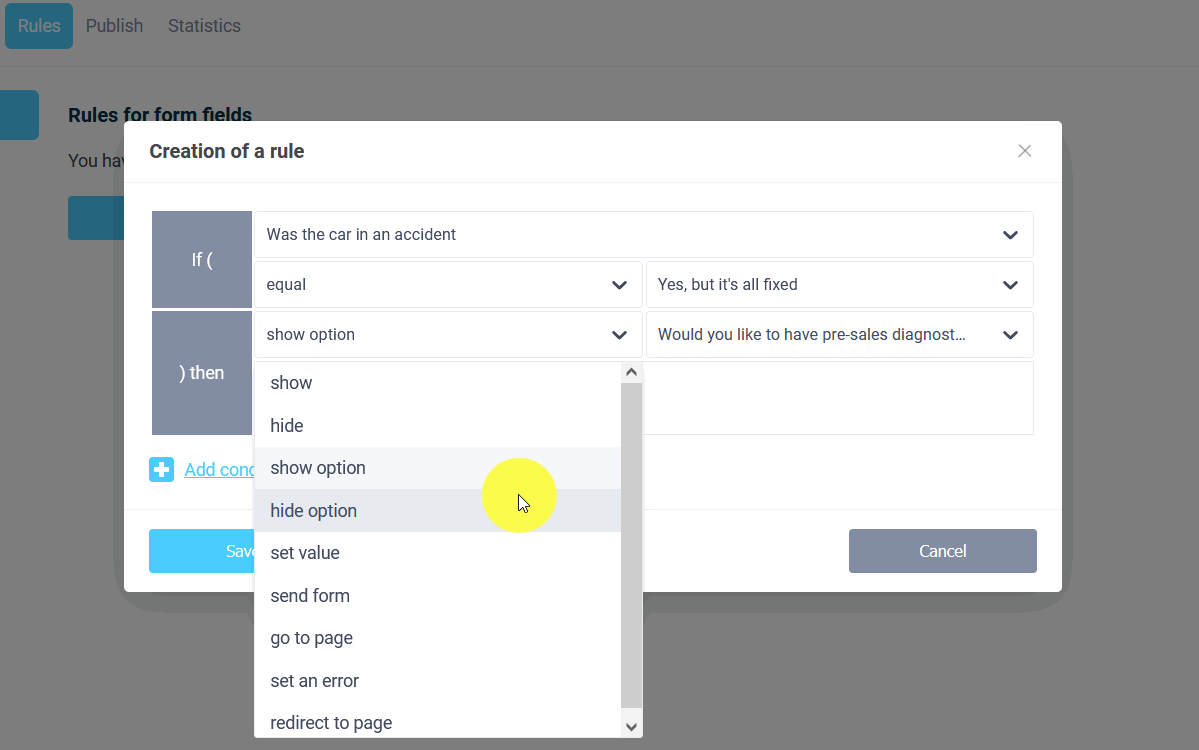
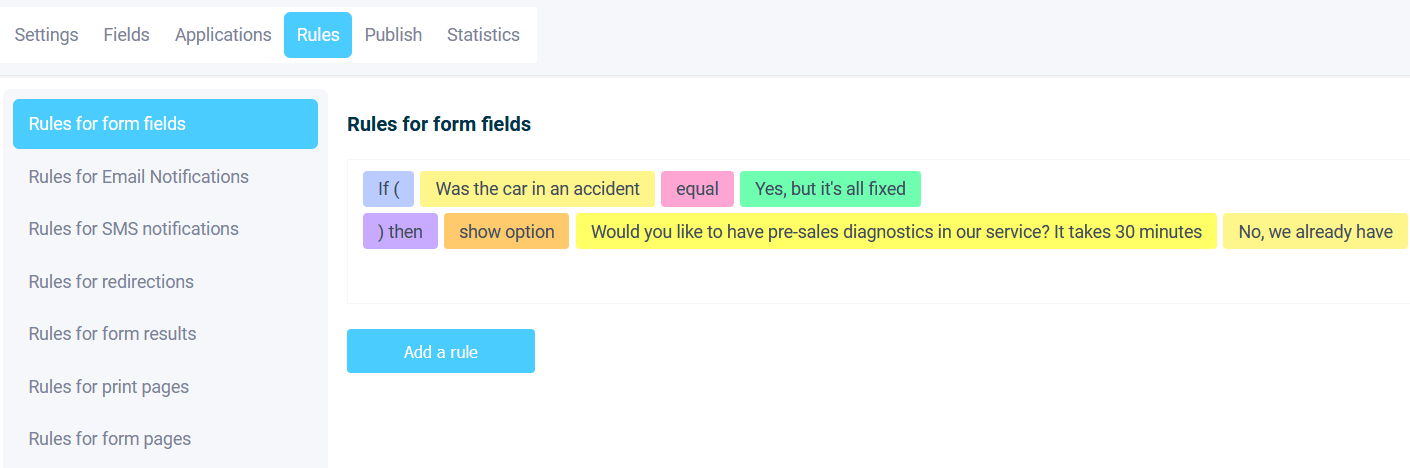
This is how you put together a quiz or survey, where the options depend on the previous answer. Once you've selected a region, the next question will only ask about cities in that region. After answering "no children," you can hide the "school" option and leave the field itself.
Works for checkboxes, radio buttons, and list boxes. Data source and auto-substitution are not included. Different rules can be used to close different variations of a single field. "Custom Variation" is supported. Variation logic also works within a repeating block.
If an already selected option is hidden, the selection is reset. If all options are hidden, the field is not displayed in the form. A rule that hides an entire field overrides the rules for options.
Hidden items are not included in the calculator, and points for them are not calculated. This option also won't be included in the application.
It's best to test the long form after publication: enable progress and complete it as the respondent will see it.
That's all for today. Have a nice day.






 Frightfully low prices! 40% off annual plans + 3 months of QuizLead.io