Hi, dear friends!
Previously, the designer featured a field library . It allowed you to save a single field and insert it into another form. If this field already existed in multiple forms, editing the field after confirming it would update all linked copies. The link to the library could be removed.
Now the section and repeater are saved there, and you can create your own block from the form fields. The entire record is inserted into another form, including the fields.
Section and repeater
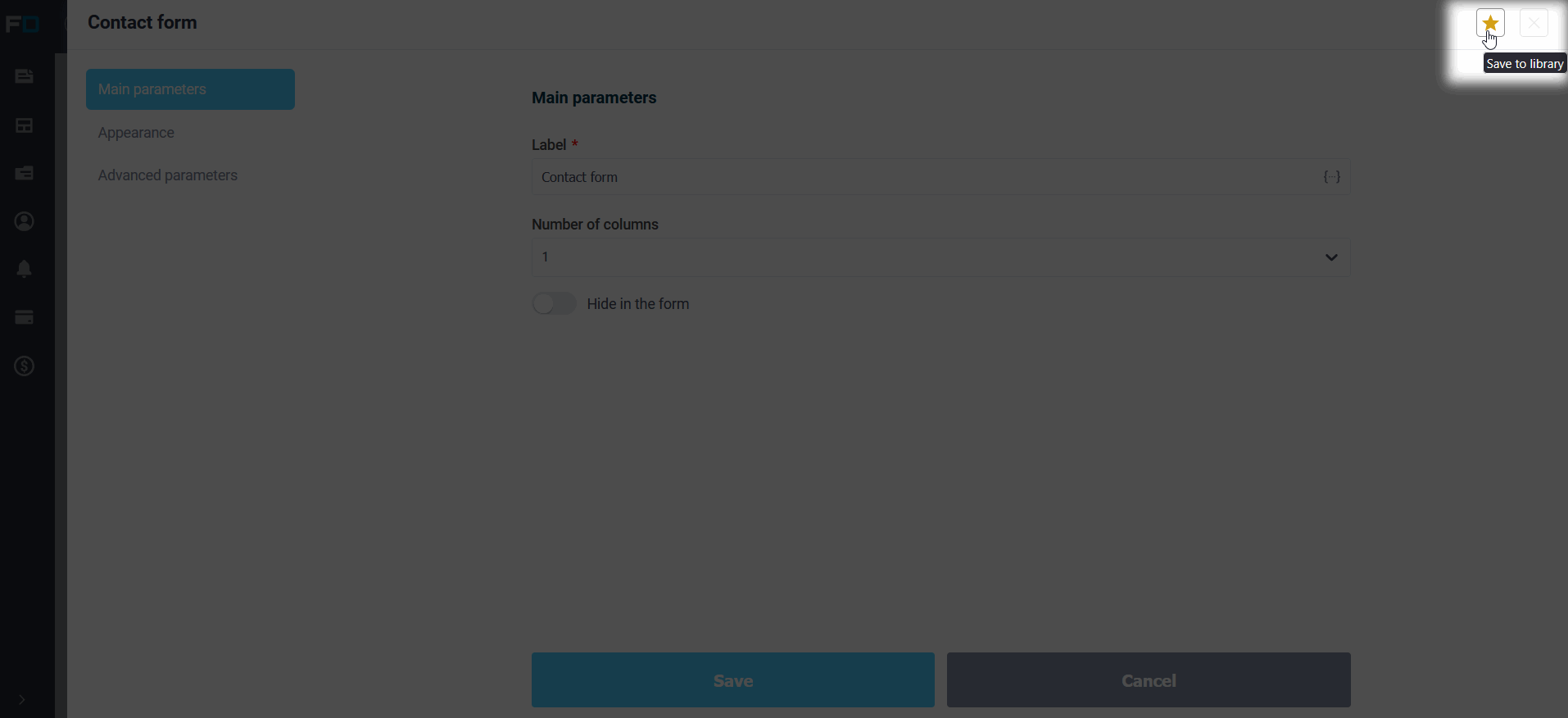
In the field editor, the "Save to library" button saves the section or repeater along with its nested fields.
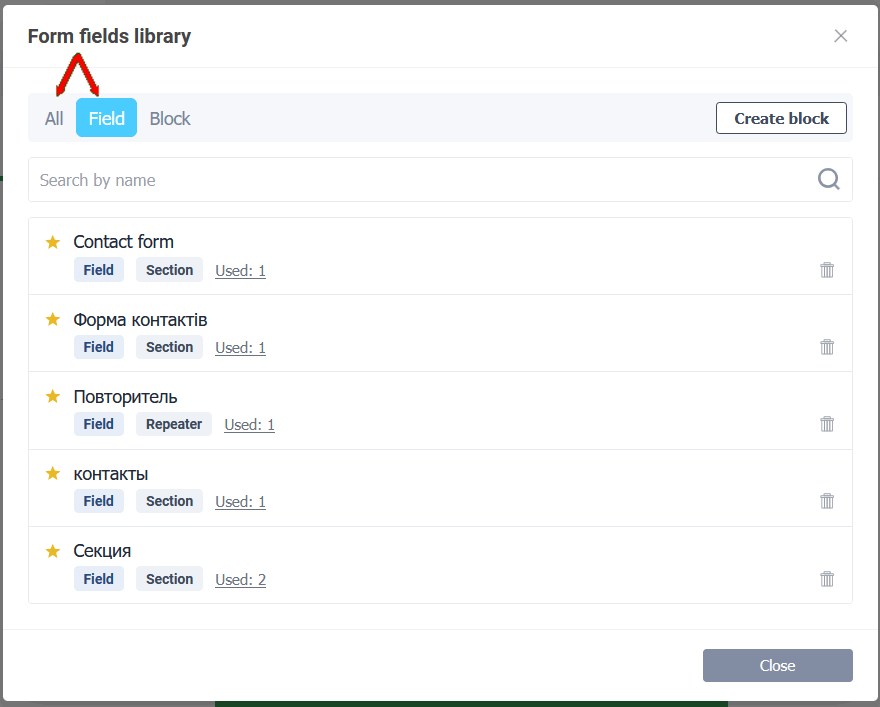
In the library they are located in the “Field” or “All” tabs.
If such an entry already exists in several forms, the designer asks for confirmation before editing.
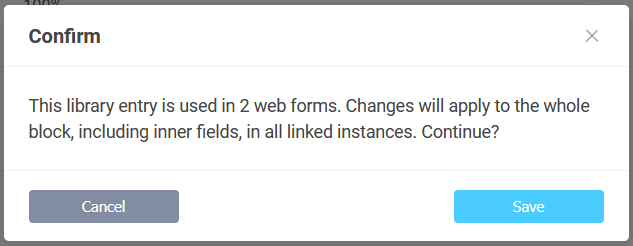
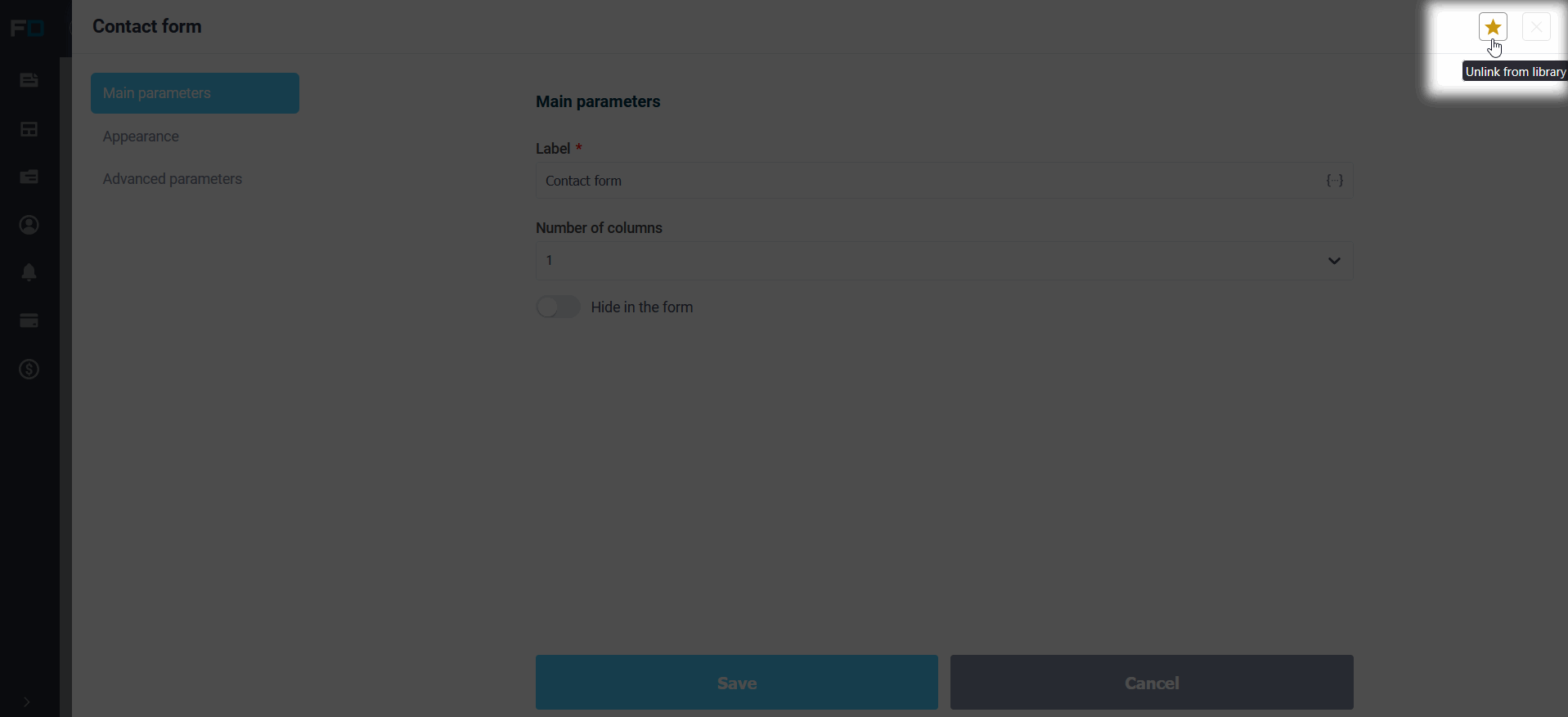
Changes will be applied to all linked copies, including fields within. The link to the root field can be removed using the "Unlink from Library" button. Internal fields are also unlinked.
Your block
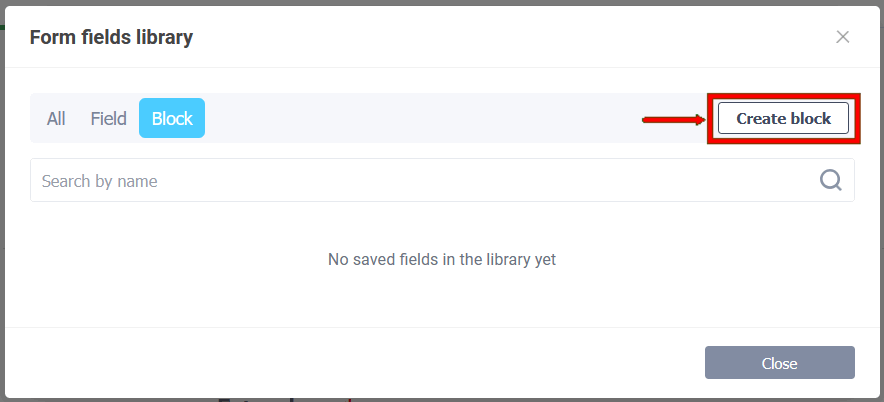
The library has a "Create Block" button.
This opens a list of fields from all form pages. Select the ones you want, give them a name, and click "Save to Library." One field will be saved as a field, two or more as a block. Fields can be taken from different pages. If the list is long, you can search for them by name.
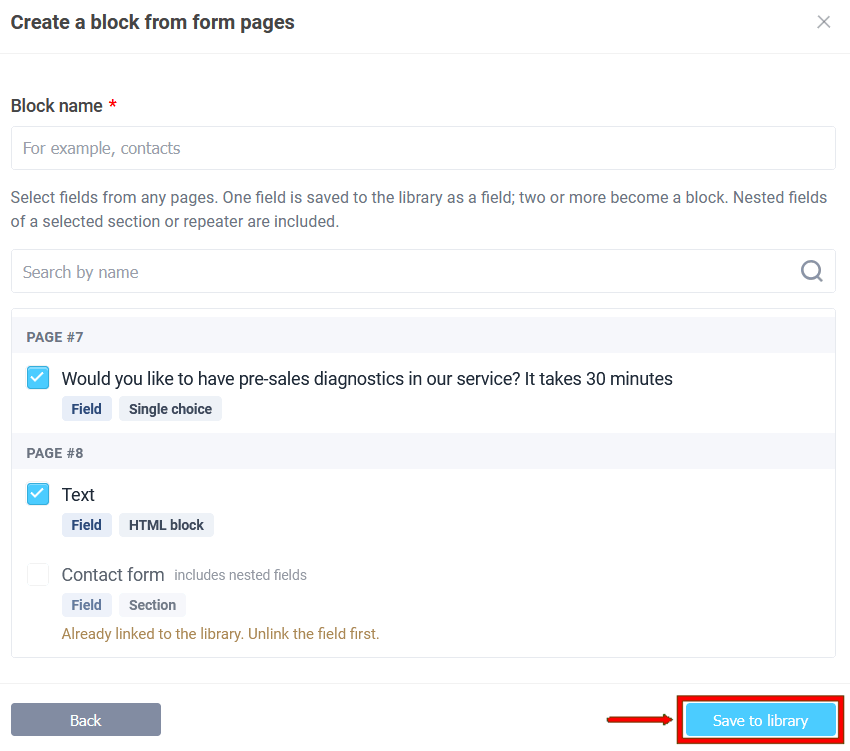
Nested fields of the selected section or repeater are included in the record. A field already linked to a library is unavailable in the list until you unlink it.