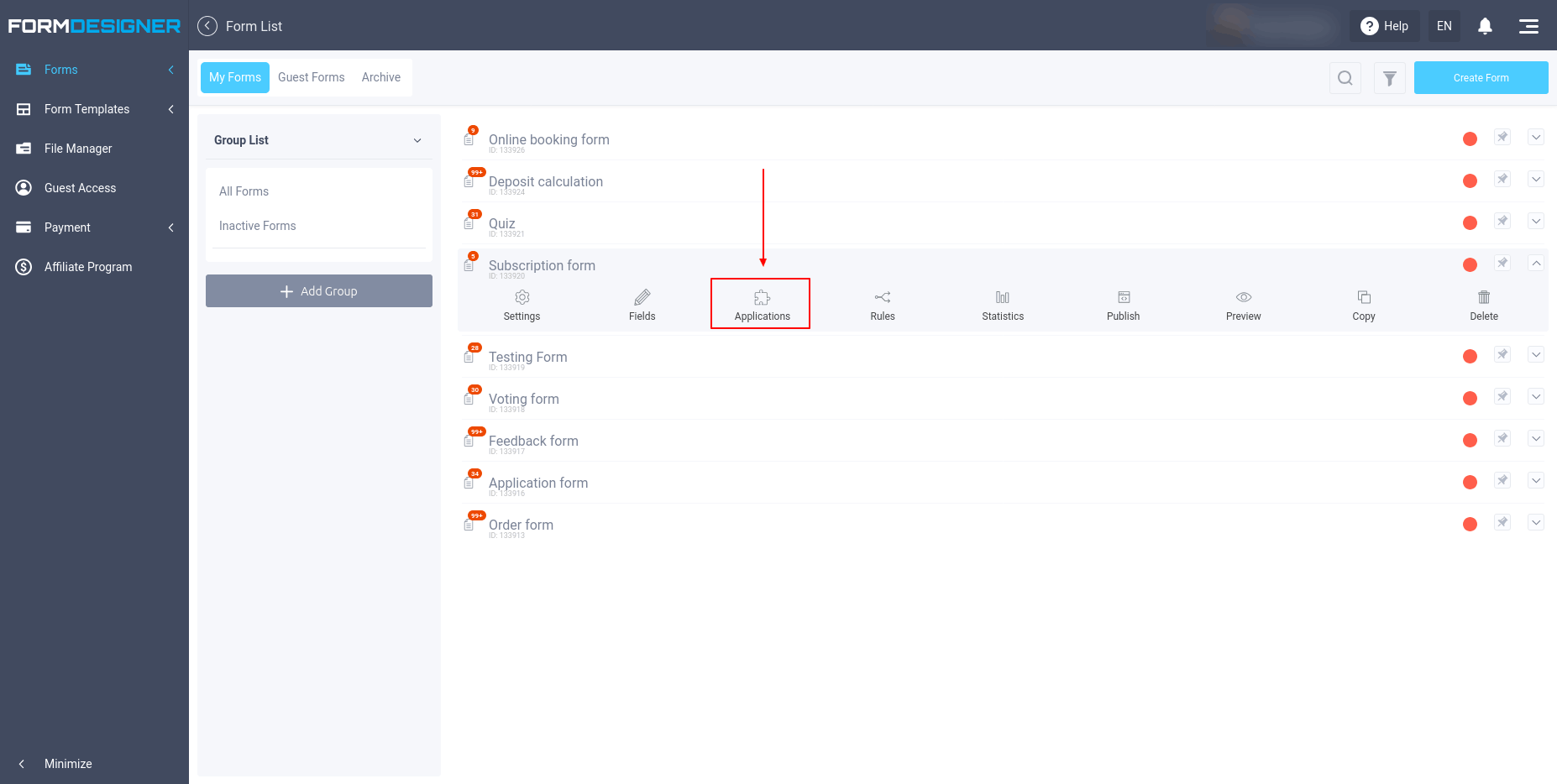
To connect the Sendpulse integration module, you need to log into your personal account and select the "Applications" section in the required form:
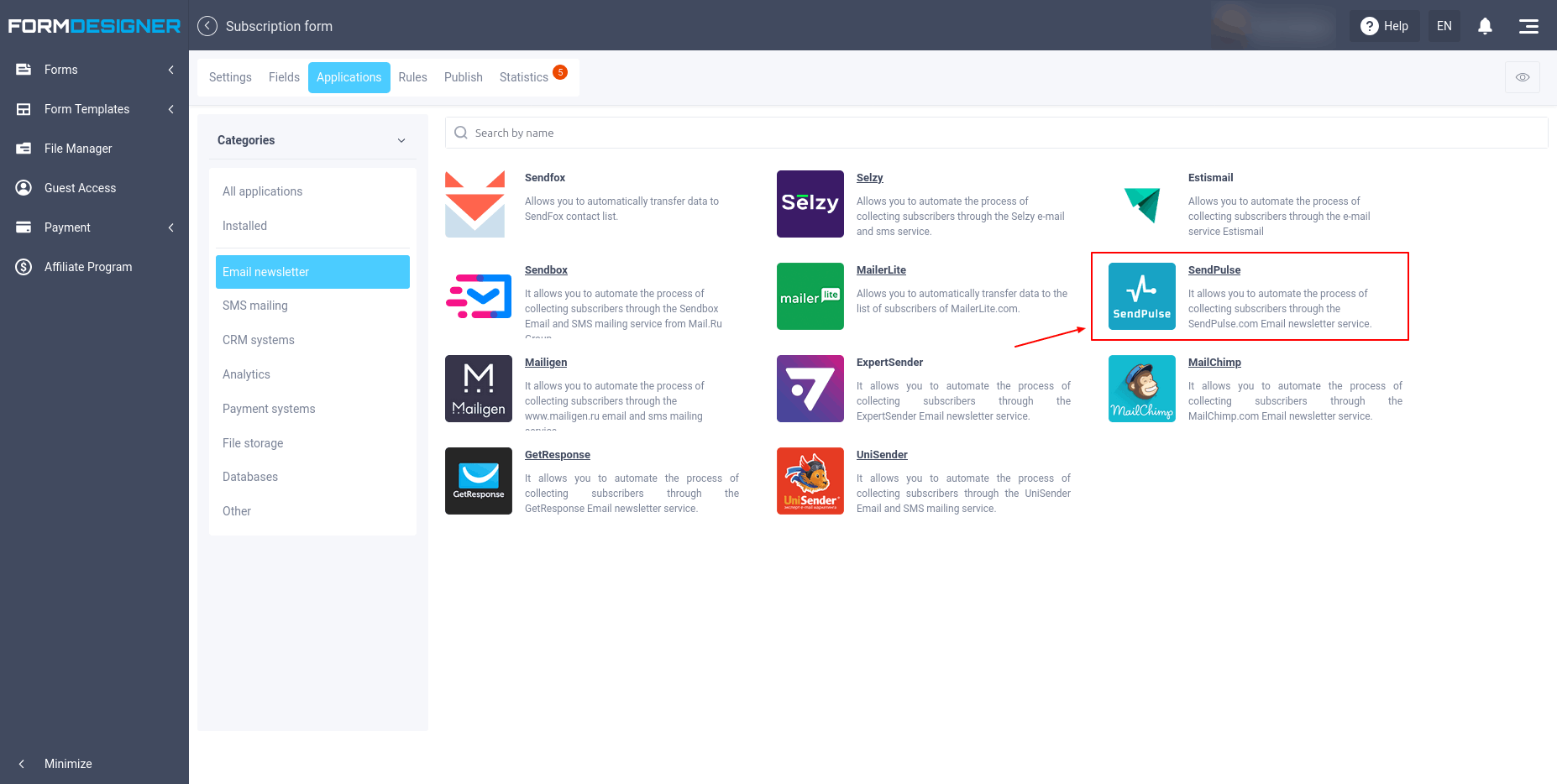
A list of all available modules will open. Click the "+Add" icon next to "SendPulse":
Module settings
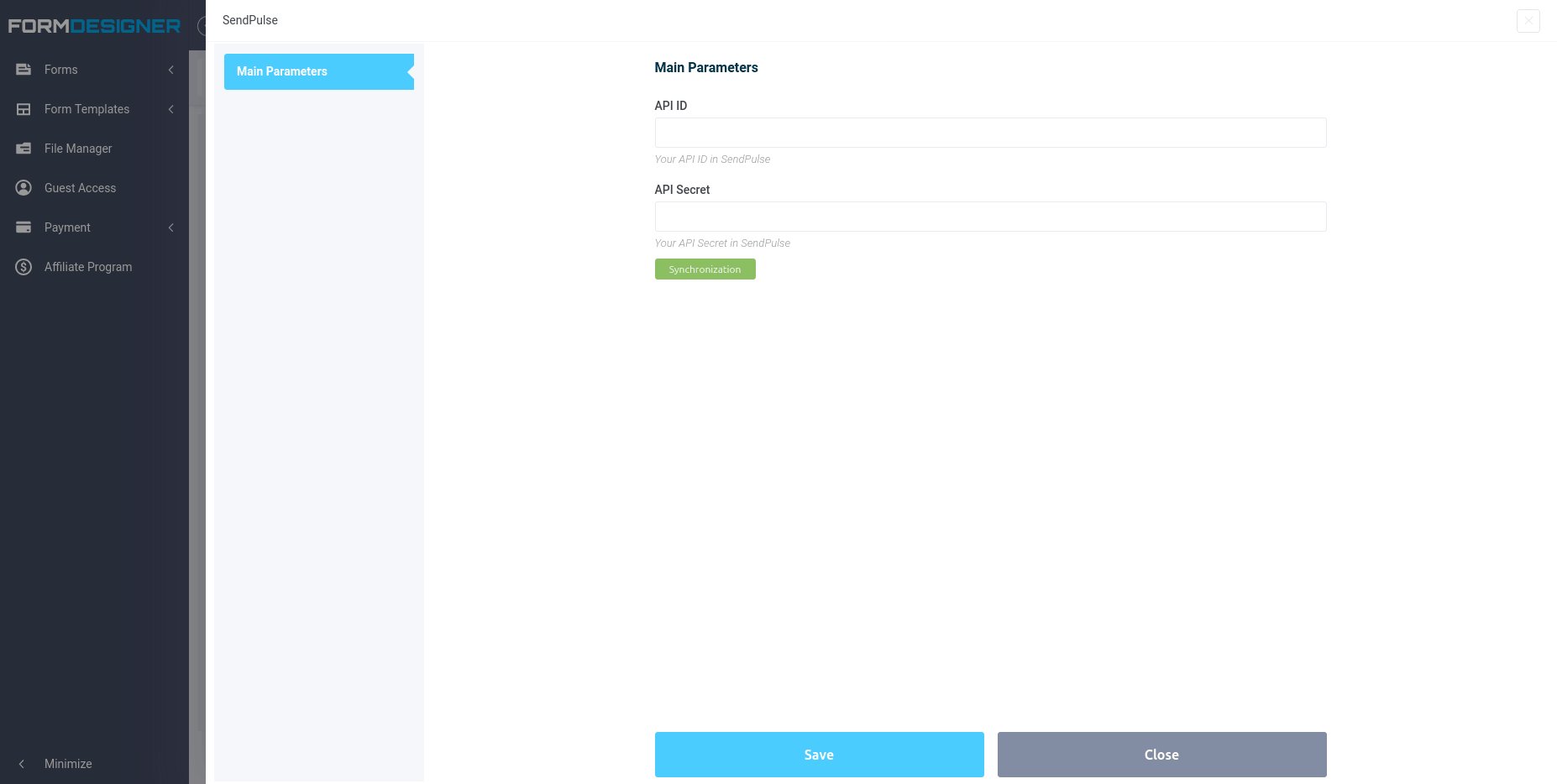
A pop-up window with module settings will open. Enter the ID and Secret of your SendPulse email service account in the "API ID" and "API Secret" fields. Then, click sync and save:
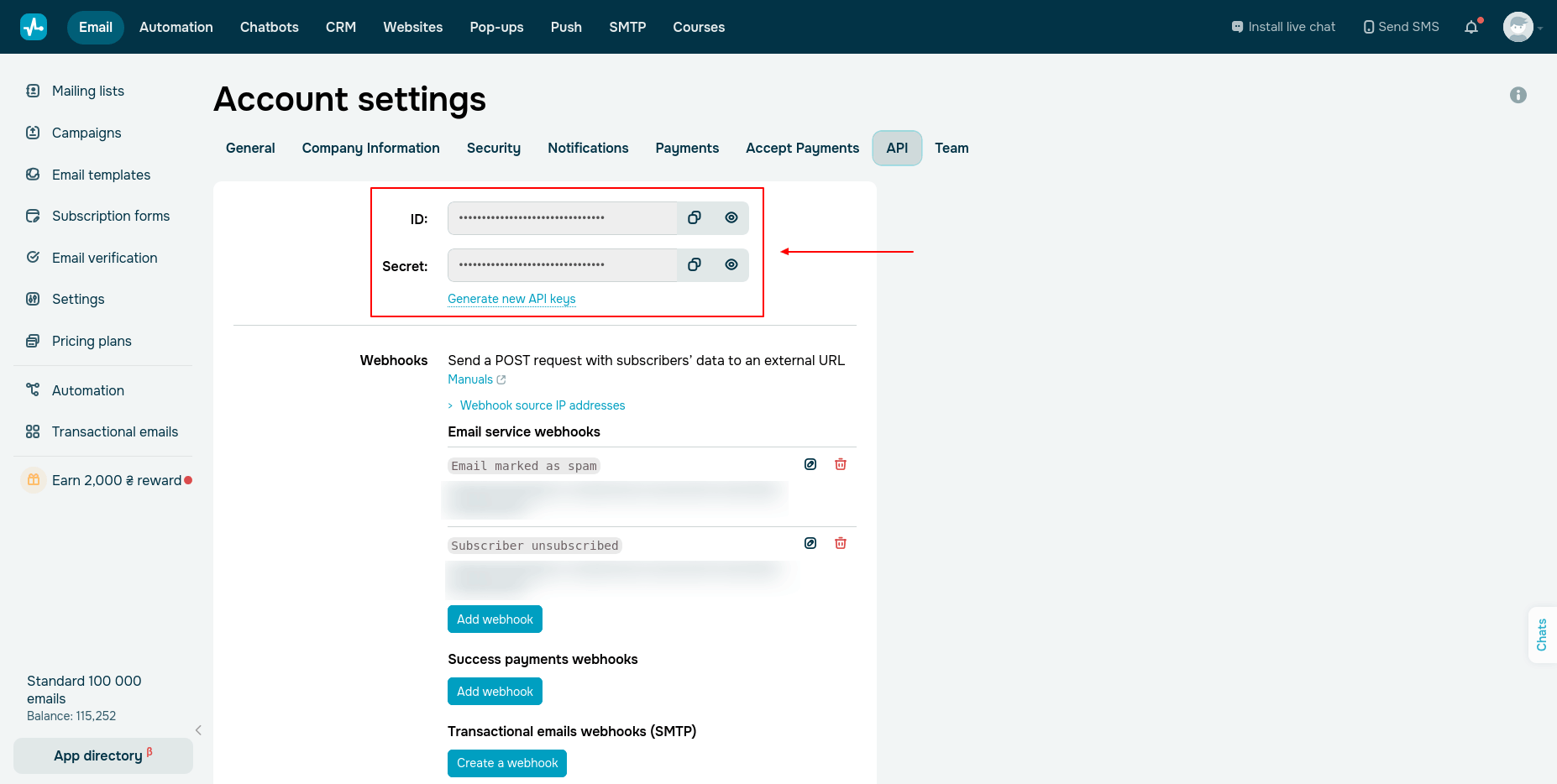
Where to find the API ID and API Secret
The parameters required to obtain the key can be found in your personal account settings, in the "API" section of the SendPulse settings. To do this, click your avatar in the upper right corner and click "Account Settings": Your account settings will open and select the "API" tab:
If you copied everything correctly, you'll see the main settings for the SendPulse module:
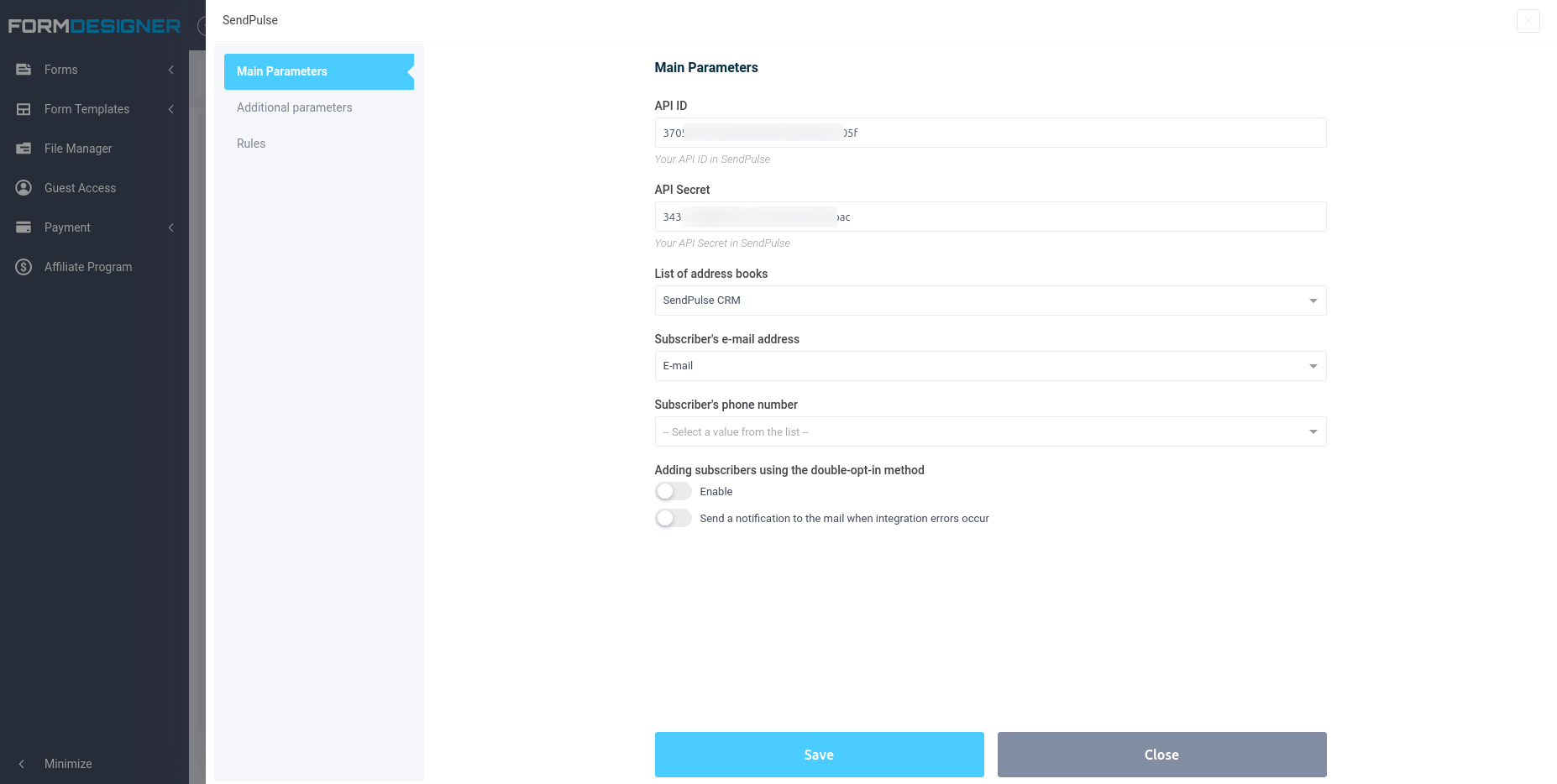
In the "List of address books" section, you can select address books created on the SendPulse service to which users who fill out the form will be subscribed.
Additional options
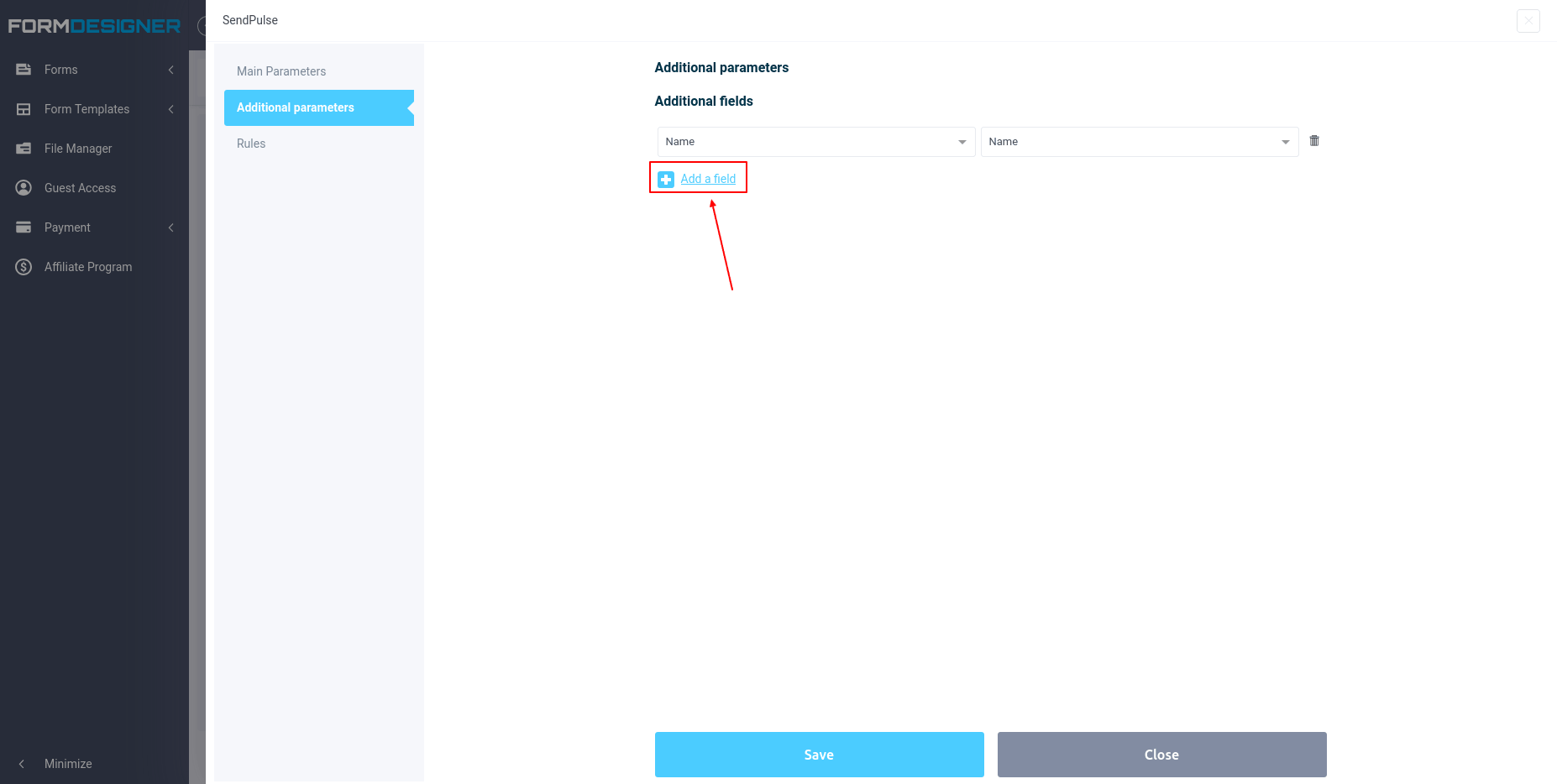
On the "Additional Parameters" tab, you can add a parameter from the form and select the corresponding item on the left: